¶ Find Your Club
Your club is one click away: Clubs has its own button in the left menu. This page shows you how to open it, and what each part of the club page does.
📋 At a glance
What it is: The route to your club, and a tour of the club page.
Who it is for: Every club member, and especially new club owners.
You will need: To be a member of at least one club.
¶ Overview
Click Clubs in the left menu, then click your club. That is all it takes.
¶ How to open your club
¶ Step 1: Click Clubs in the left menu
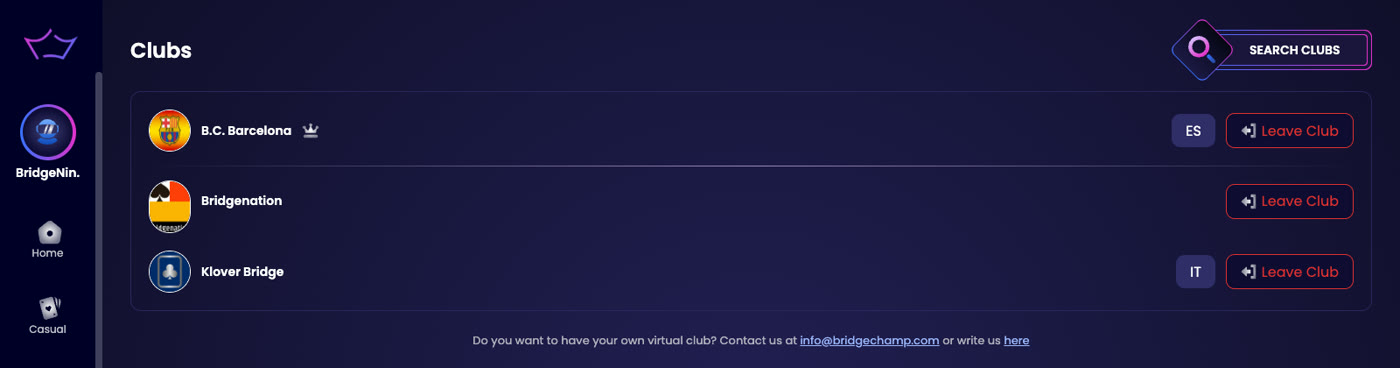
The Clubs button sits in the left menu, between History and Deal Source. The Clubs page opens.
¶ Step 2: Open your club
The Clubs page lists every club you belong to, with its logo and country. A crown marks a club you run, as its owner or as an admin. Click the club to open it.
The same page has a Search Clubs box to find other clubs, and a line underneath to request a club of your own.
¶ The club page at a glance
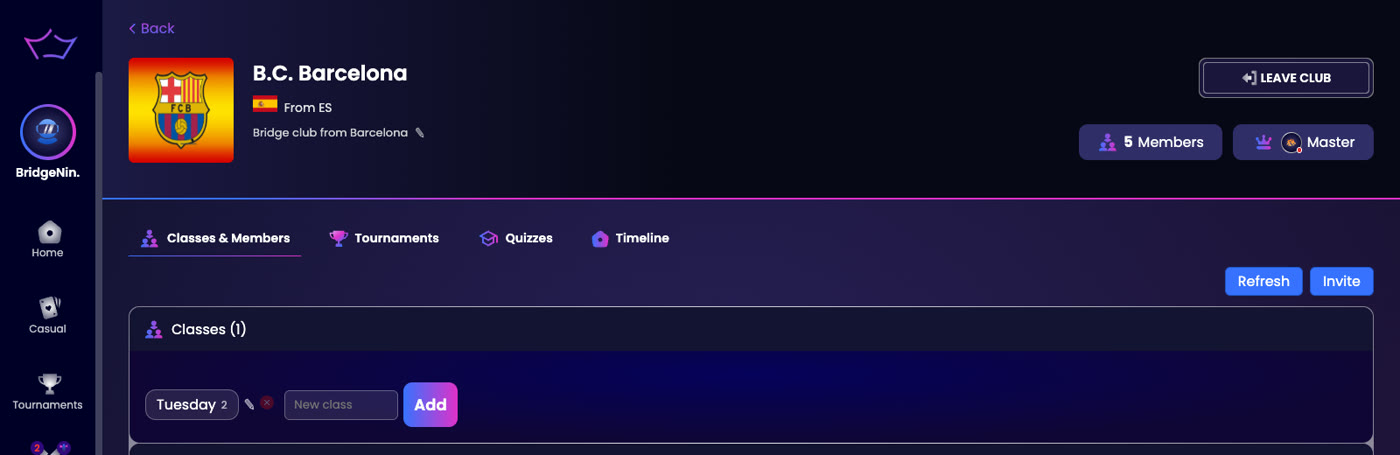
Opening a club shows its home page. At the top you see the club logo, its name, the country it is from, and a short description you can edit with the pencil icon. On the right you see the member count and the owner, marked with a crown.
Below the header are four tabs that hold everything else, and owners see a fifth:
- Classes & Members: everyone in the club and the classes they belong to. See Members and Roles and Classes.
- Tournaments: your club's upcoming, running and finished events. See Club Tournaments.
- Quizzes: the bidding quizzes your club has published for you. See Bidding Quizzes.
- Timeline: news and announcements posted by the club. See Club Timeline.
- Usage (owners only): which members played in club tournaments each month.
⚠️ Do you have a club yet? Clubs are created by the Bridge Champ team on request. Write to info@bridgechamp.com with your club name, the owner's username, your country and your preferred language, or use the write us here link on the Clubs page.
¶ Related guides
- Members and Roles: invite players and manage the member list
- Classes: group your members
- For Clubs: all club guides
Questions about your club? Write to us at info@bridgechamp.com.