¶ Club Tournaments
A club tournament is a normal Bridge Champ tournament, reserved for your people. You create it in the usual way, then restrict who can enter: the whole club, or one class inside it.
📋 At a glance
What it is: Tournaments attached to your club, with entry limited to your members.
Who it is for: Club owners, club administrators and teachers running events for their students.
You will need: A club, and enough members or students to fill the event.
¶ Where your club events live
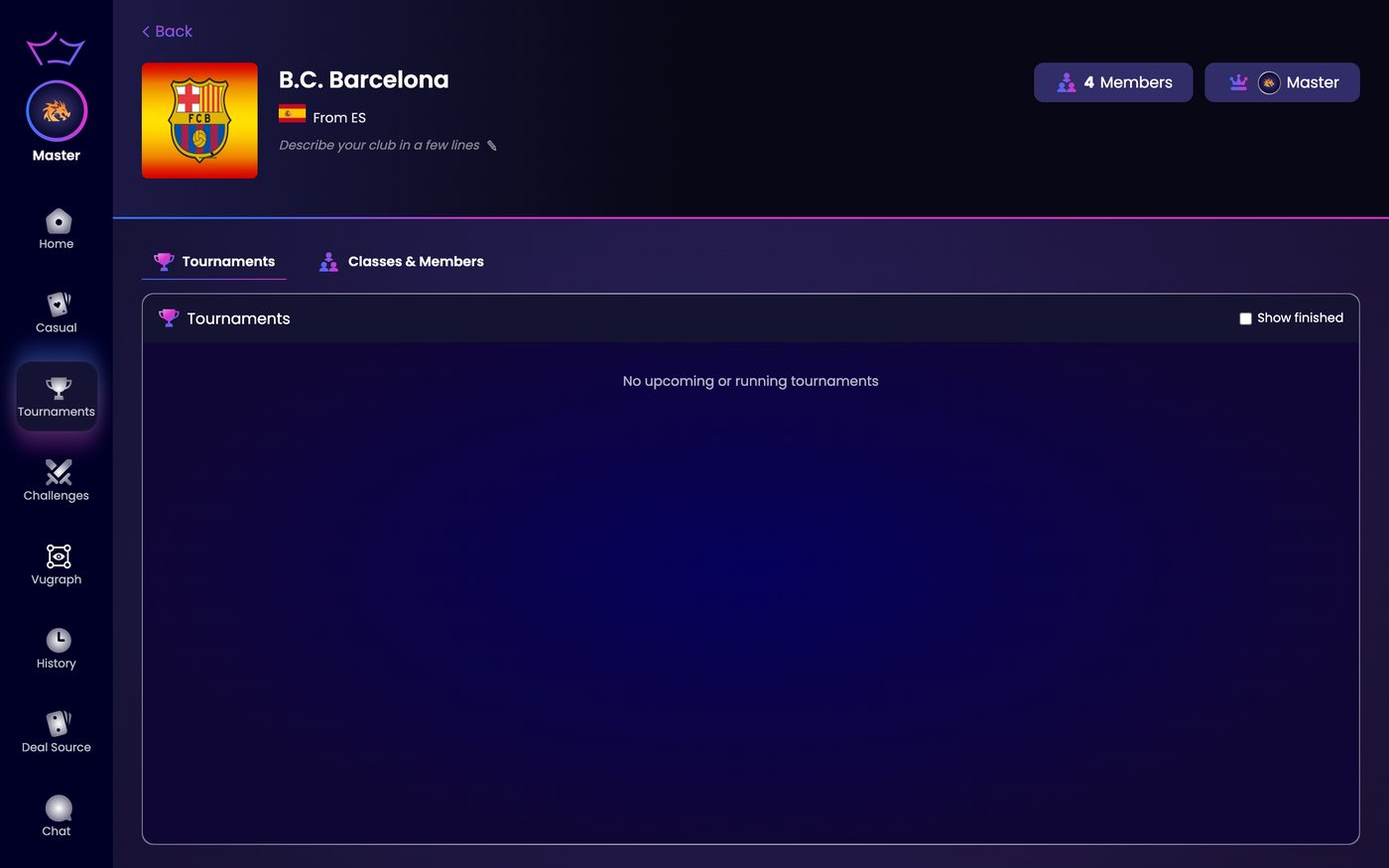
The Tournaments tab inside your club lists your club's upcoming, running and finished events. Tick Show finished to include the past ones. On the main Tournaments page you can also use the Club filter to show only a club's events.
¶ How to create a club tournament
¶ Step 1: Start a new tournament
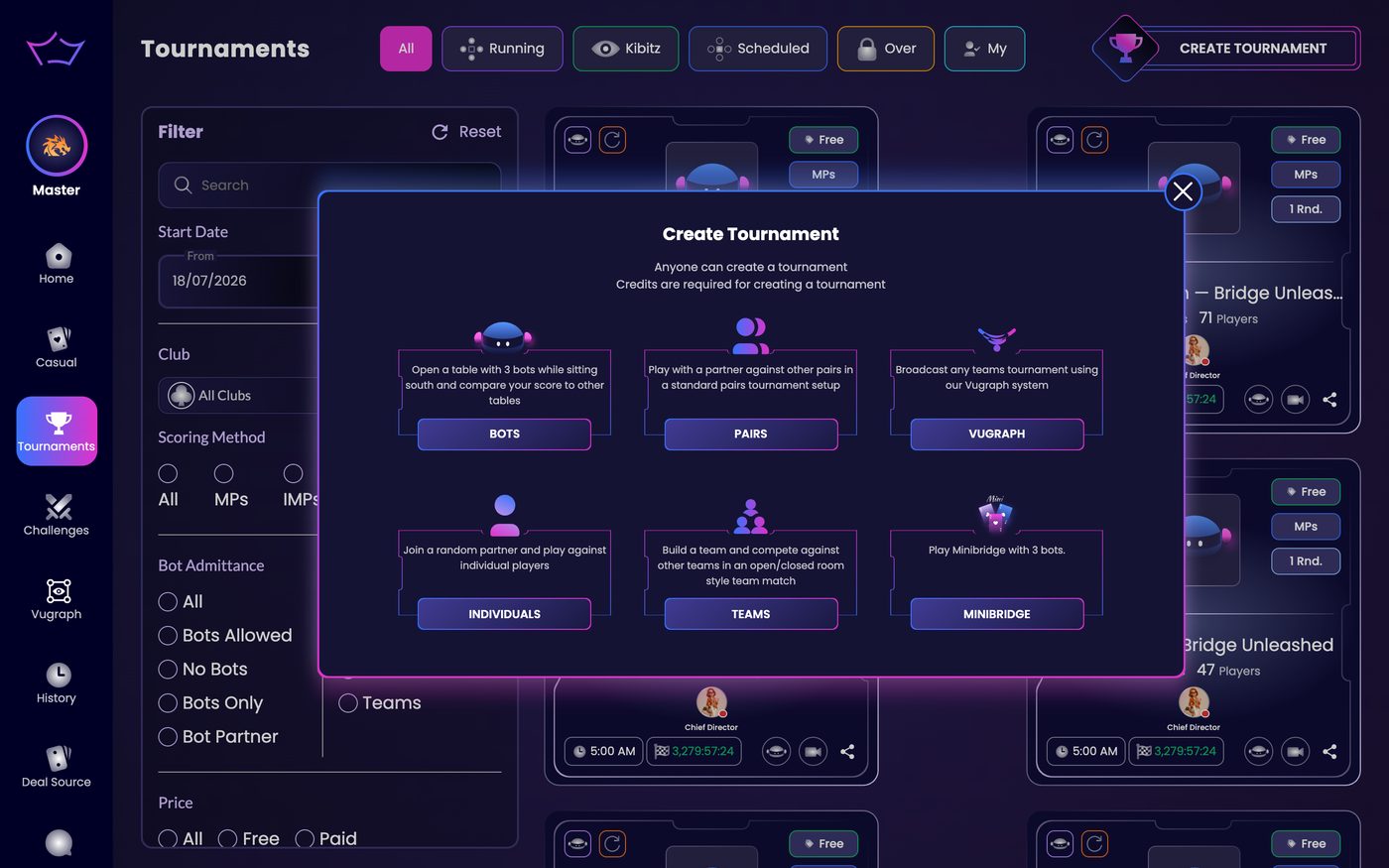
Open Tournaments in the left menu and click Create Tournament. Choose a type: Bots, Pairs, Vugraph, Individuals, Teams or Team Match.
¶ Step 2: Fill in the basics
Give the tournament a Title and a Description, set the Start time (a Bots tournament also has a Finish time; the other types run on Minutes per board), and choose the number of rounds, the boards per round and the scoring method.
¶ Step 3: Open the Restrictions section
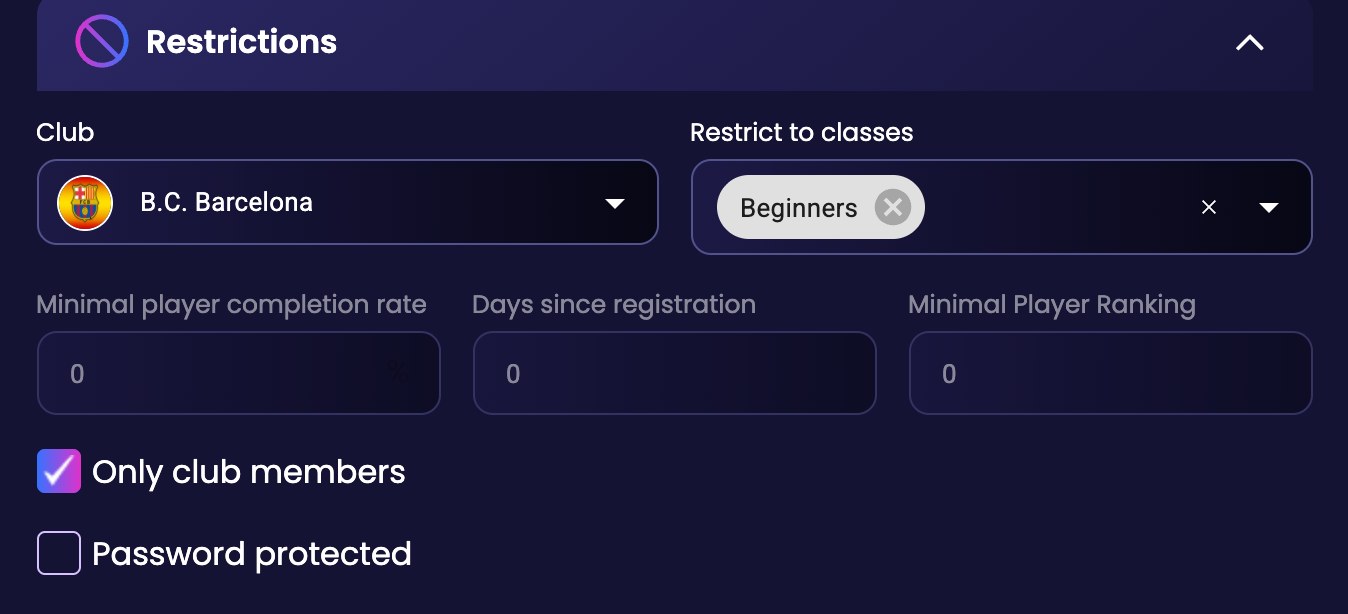
Scroll down to Restrictions and open it. This is where the club settings are.
¶ Step 4: Select the club, and optionally the classes
Choose your club in the Club field. A Restrict to classes field appears next to it. Pick one or more of the club's classes there, and only the students in those classes can enter. The field only offers classes that already exist in the club, so create them first if the list is empty.
You can also tick Only club members to open the event to your whole club, and Password protected if you prefer to share a password instead. See Password Protected Tournaments.
¶ Step 5: Create it, then announce it
Click Create. The tournament now appears in your club's Tournaments tab. Post it on the club timeline with a link to the tournament, so your members can register in one click.
¶ Related guides
- Create Tournament: every setting explained
- Manage Tournament: run it on the day
- Classes: create the groups you restrict to
- For Clubs: all club guides

Questions about your club? Write to us at info@bridgechamp.com.