¶ Password Protected Tournaments
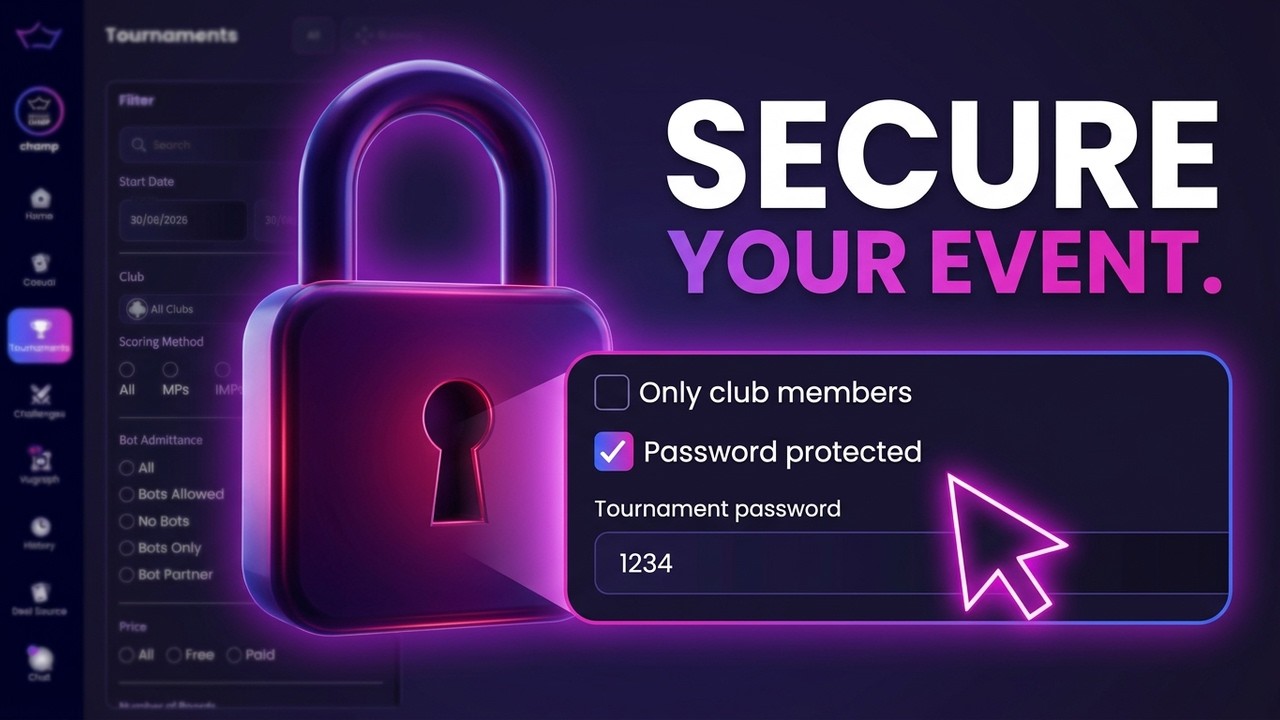
A password-protected tournament is private. It still appears in the tournament list, but only players who type the password you set can register.
📋 At a glance
What it is: A tournament that only players with your password can join.
Who it is for: Teachers and directors running a private event for a specific group.
You will need: Enough credits to create a tournament, and a password to share with your group.
¶ Overview
Password protection is a setting you switch on while creating a tournament. It is the quickest way to keep an event private for one group, for example:
- A lesson or practice session reserved for your own students.
- A club event for invited members only.
- A friendly tournament for a closed group.
It is available for Bots, Pairs, Vugraph, Individuals and Teams tournaments, in the Restrictions section of the setup window. A Team Match has no Restrictions section, and Minibridge is a switch on the Main section rather than a type of its own.
¶ How to use it
¶ Step 1: Open the Tournaments page
Log in and, from the main screen, click Tournaments in the left menu.
¶ Step 2: Start a new tournament
Click Create Tournament (top right) and choose the event type: Bots, Pairs, Vugraph, Individuals or Teams. Credits are required to create a tournament.
¶ Step 3: Fill in the main settings
On the Main section, set the title, description, logo, start time (a Bots tournament also has a finish time), number of rounds, boards per round, bots policy, movement type and scoring method.
¶ Step 4: Open the Restrictions section
Scroll down and click Restrictions to expand it. Among the options are two checkboxes: Only club members and Password protected.
¶ Step 5: Turn on Password protected
Tick Password protected. A Tournament password field appears just below it. Type the password your players will need, and use the eye icon to reveal it and check what you typed.
¶ Step 6: Create the tournament
Complete any remaining options and press CREATE. Your tournament is now scheduled and protected.
¶ Step 7: How players register
On the tournament page the Registration panel now shows This tournament is password protected and an Enter tournament password field. Players type the password you gave them, then click Register. Anyone without it cannot join.
💡 Tip: Send the password to your class in a chat message or email shortly before the event, keep it short and easy to type, and combine it with Only club members for an extra layer of control.
¶ Related guides
- Club Classes: reserve an event for one group of students
- Teaching Tables: run a live lesson
- For Teachers: all teacher guides

Questions or ideas for your bridge classes? Write to us at info@bridgechamp.com.