¶ Teaching Tables
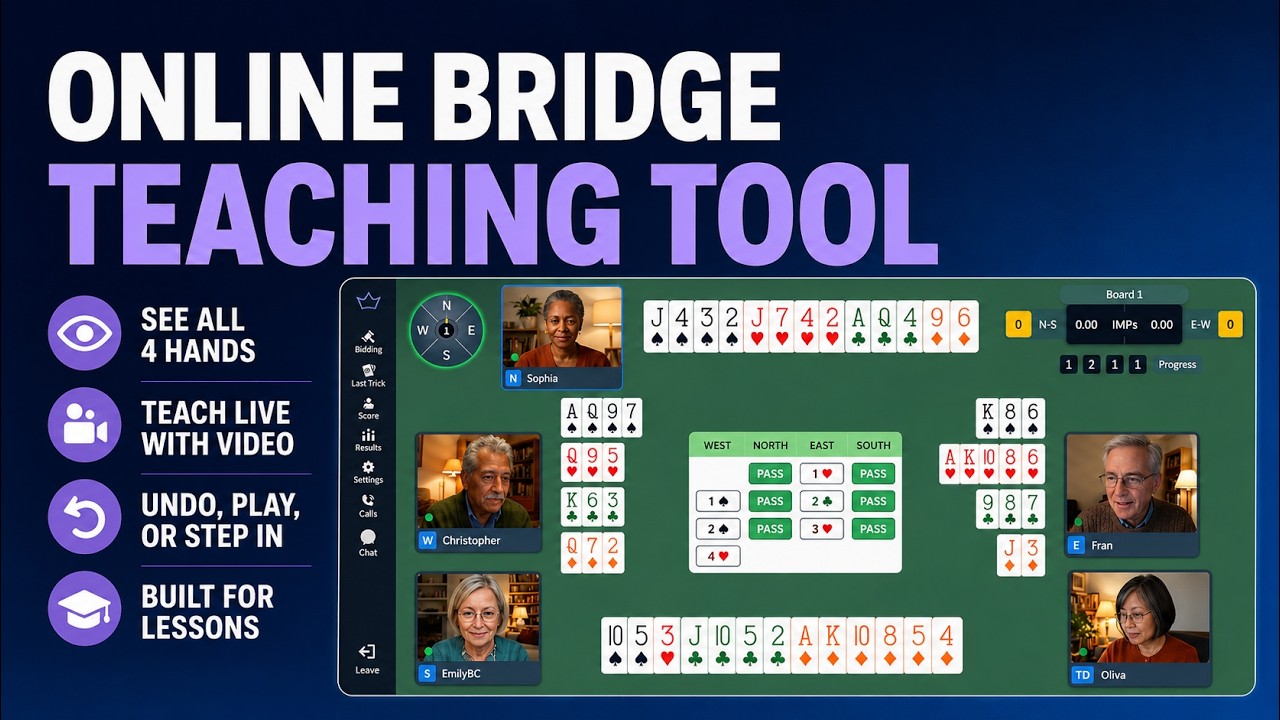
A Teaching Table is a table built for lessons. Unlike a normal table, you (the teacher) see all four hands at once and can play any of them. Sit in one seat, in several, or in none and simply guide, and hand any seat to a student or a robot whenever you like.
📋 At a glance
What it is: A lesson table where the host sees and plays every hand.
Who it is for: Bridge teachers and club instructors running lessons, in person or online.
You will need: A Bridge Champ account. Students can join from anywhere; robots fill any empty seats.
¶ Overview
On an ordinary table each player sees only their own cards. A Teaching Table removes that limit for the host, so you can talk through the bidding and the play with nothing hidden, exactly as you would around a real teaching table.
¶ Why teachers use it
- You see every hand, so you can explain each decision with the full picture in front of you.
- You control the pace. Cards are never played automatically, so you decide when to move on.
- You can fill empty seats with robots and run a demonstration entirely on your own.
- It pairs with the Projection Table to show your class only the hands you choose.
¶ How to set one up
¶ Step 1: Open the New Table window
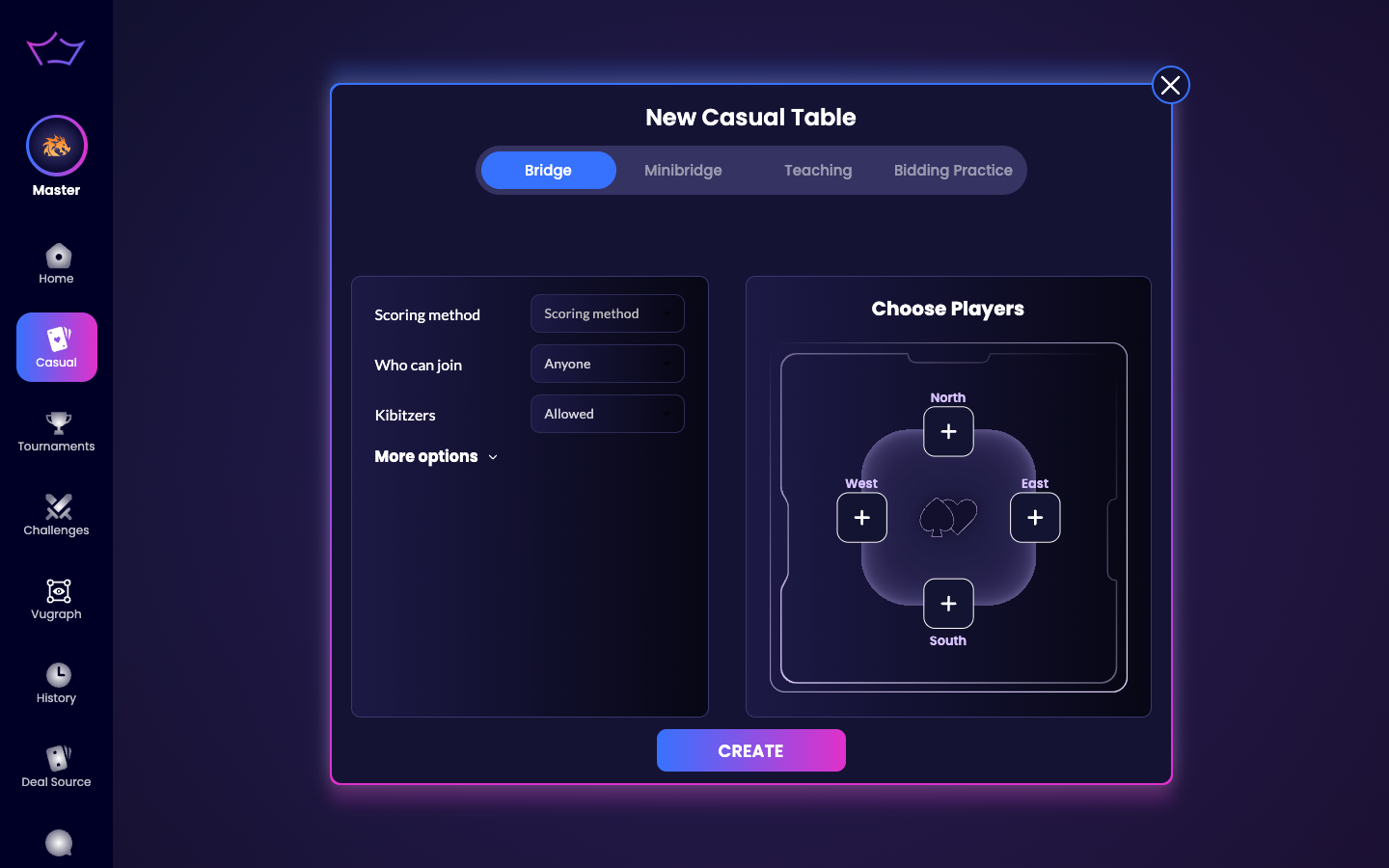
In the left menu click Casual, then Start New Table. The New Casual Table window opens with four table types across the top: Bridge, Minibridge, Teaching and Bidding Practice.
¶ Step 2: Choose Teaching
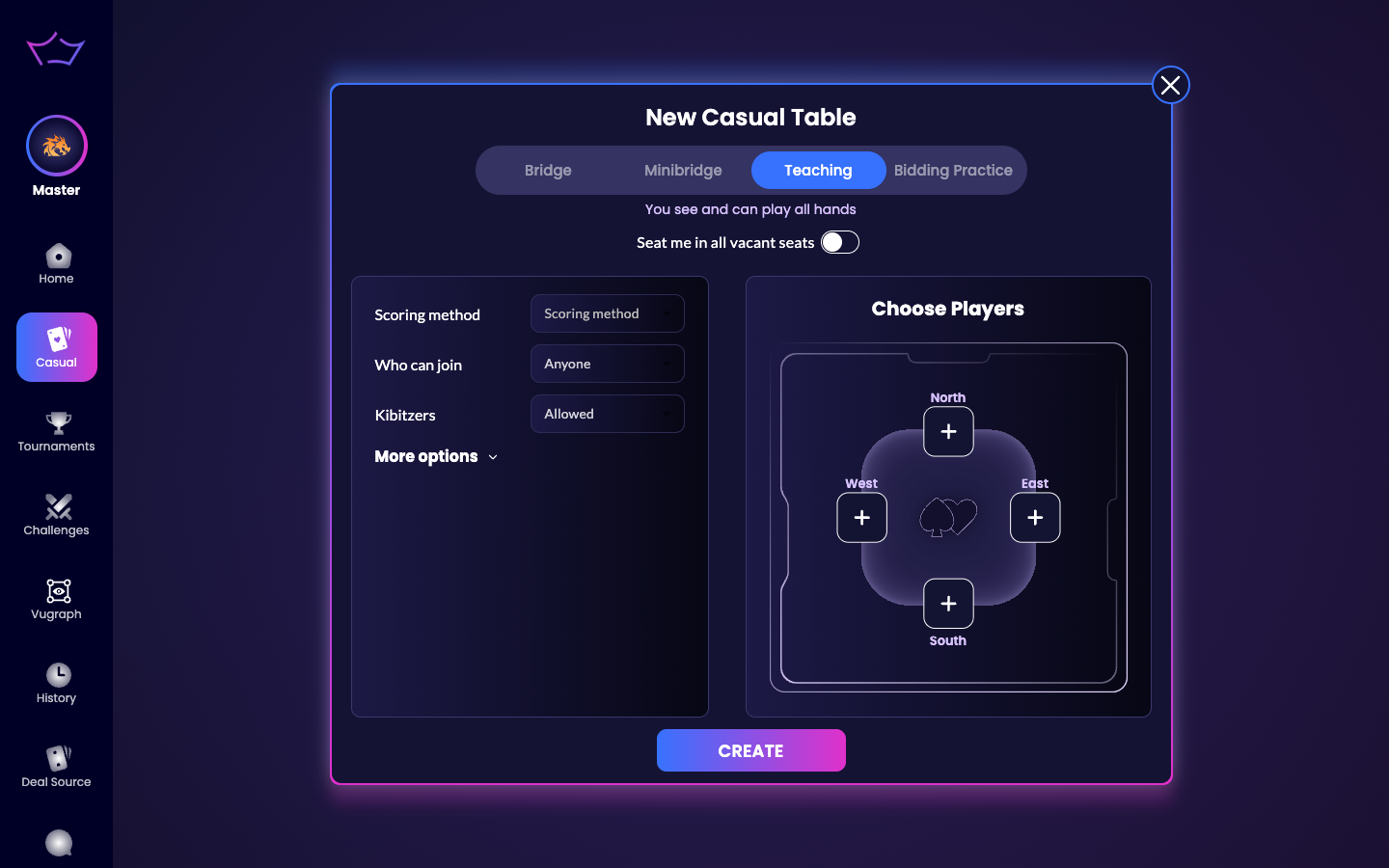
Click the Teaching tab. A line confirms “You see and can play all hands”. Below it is a switch, Seat me in all vacant seats:
- Turn it on to sit in every empty seat and play a whole hand yourself as a demonstration.
- Leave it off to begin as the teacher only, then invite students or robots into the seats.
Set the scoring method if you wish, then click CREATE.
¶ Step 3: Fill the seats
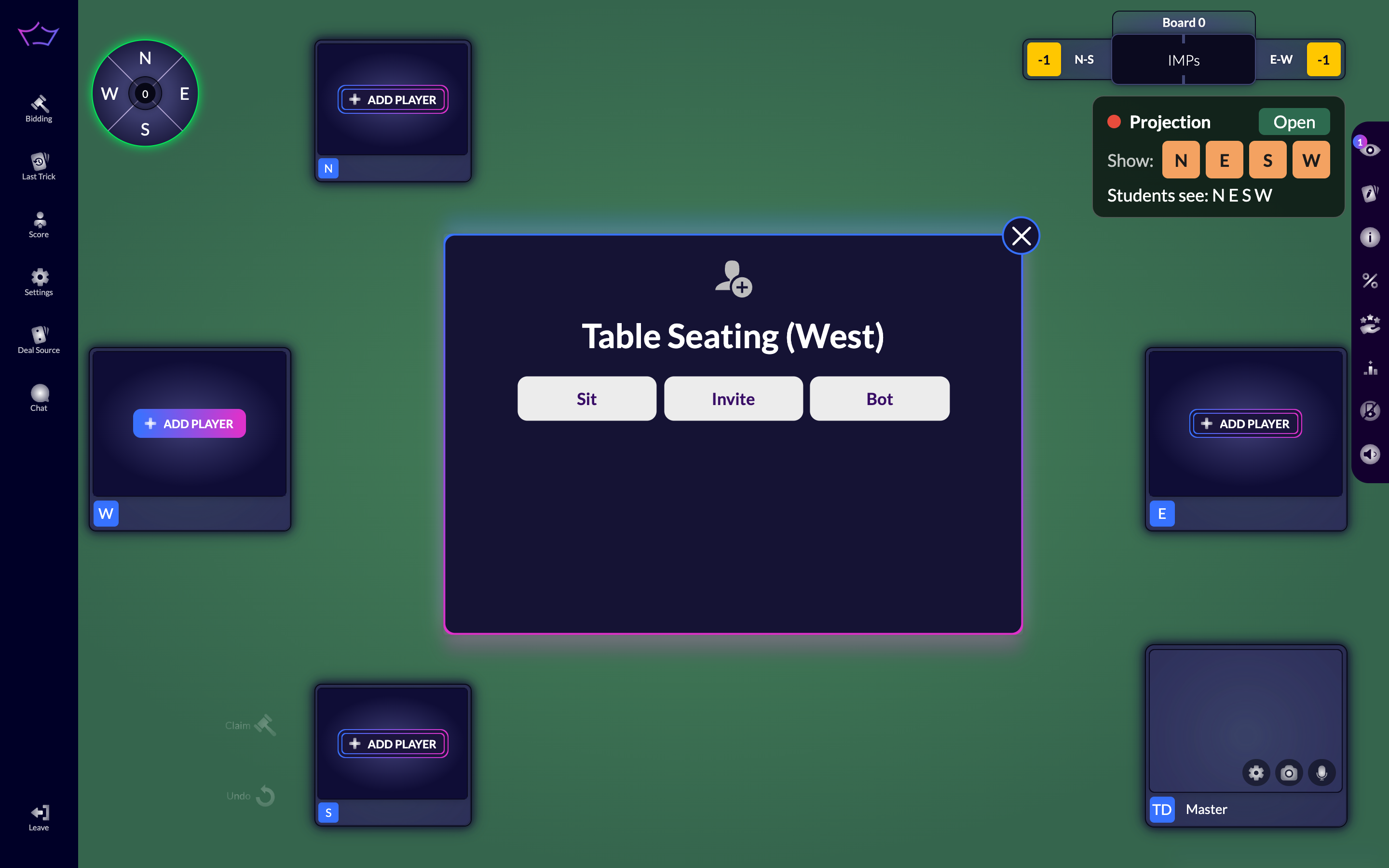
Your table opens with four seats. Each empty seat shows an ADD PLAYER button; click it for three choices:
- Sit: take that seat yourself.
- Invite: search for a student by their Bridge Champ username and invite them. The invitation reaches them inside Bridge Champ, so your students each need their own free account and you need their username (a good thing to collect at your first class).
- Bot: place a robot (ChampBot) in the seat.
You can change any seat at any time during the lesson.
¶ Step 4: See and play every hand
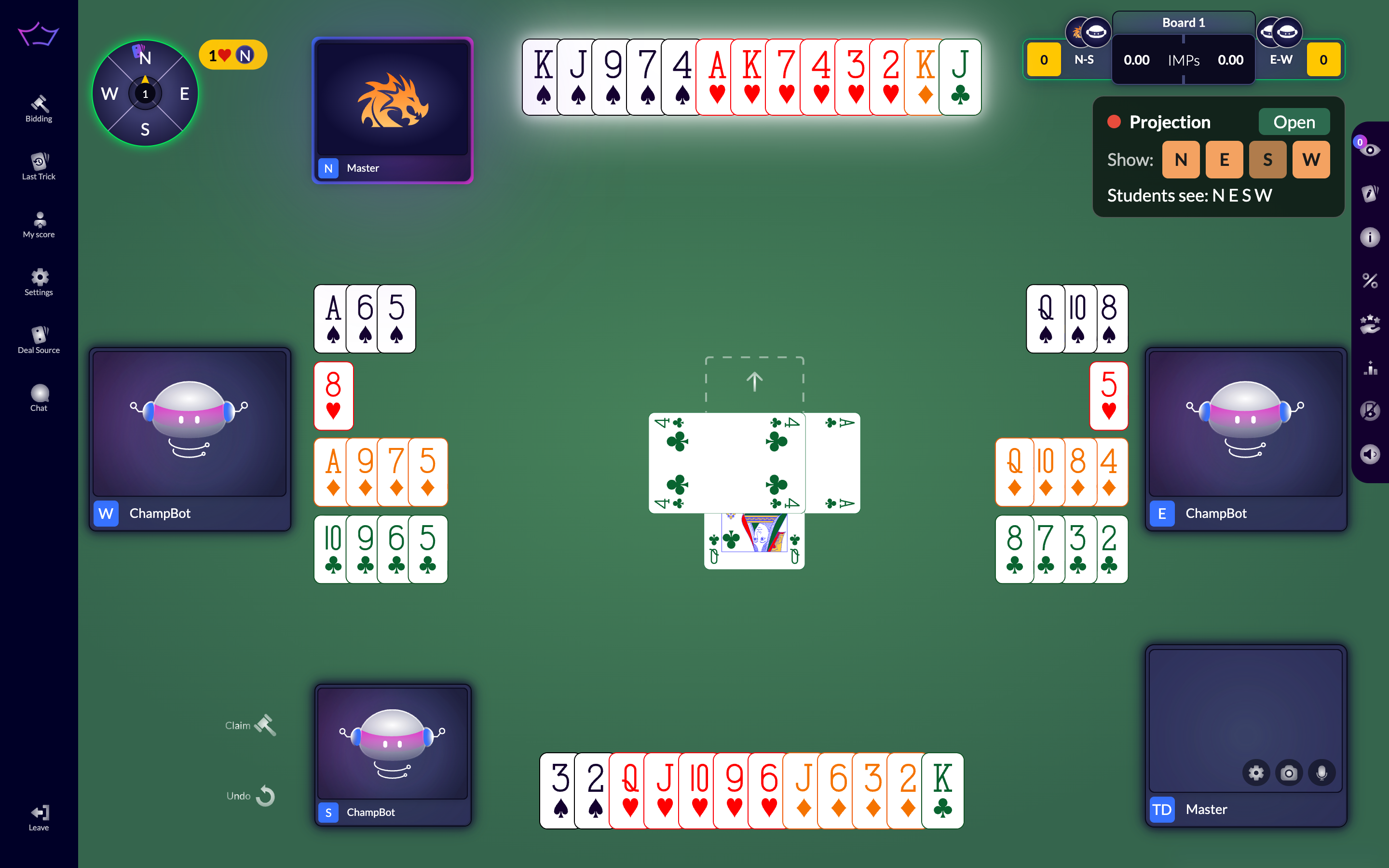
Once the deal starts, all four hands are visible to you. Play a card from any seat to demonstrate a line, or let a student play their own hand while you guide them. Your Claim and Undo buttons sit beside your seat, and as the teacher your claim is applied immediately, without waiting for the other players to agree.
⌨️ Operate the game from the keyboard: as the teacher you can drive the whole table with the keyboard, using the same tools available to vugraph operators, to enter bids and play cards quickly. This is ideal when you are running all four hands during a demonstration.
¶ Step 5: Teach a prepared hand (optional)
To teach a hand you built earlier instead of a random one, prepare it first in Deal Source and the Hand Editor. Then use the hand’s Play action in Deal Source, or open Deal Source from the table’s left menu, to bring that deal to the table for your class.
💡 Tip: When you play with robots, your microphone and camera start switched off. Turn them on or off at any time from the controls on your own seat, or from Settings in the left menu.
📝 Note: Each student you invite needs their own free Bridge Champ account, and you need their username to find them. Collecting usernames at your first class makes inviting them to later lessons quick.
¶ Step 6: Swap two cards during the hand (optional)
Sometimes a hand does not make the point you wanted it to. You can change it while you are playing, by swapping cards that have not been played yet between two hands.
Click Swap cards at the bottom left, next to Claim and Undo. A banner appears across the top of the table: Swap mode: Click two cards in different hands to swap them.
Click one card, then click a card in a different hand. The two trade places. Swap as many as you need, then click Exit swap mode to carry on playing. If you change your mind, the ordinary Undo button takes a swap back.

¶ Related guides
- Projection Table: show your class a clean student view
- Bidding Practice Tables: drill bidding with no card play
- Deal Source: organise your lesson hands
- Hand Editor: build a hand to teach a point
- For Teachers: all teacher guides
Questions or ideas for your bridge classes? Write to us at info@bridgechamp.com.