¶ How to Start Playing Bridge on Bridge Champ
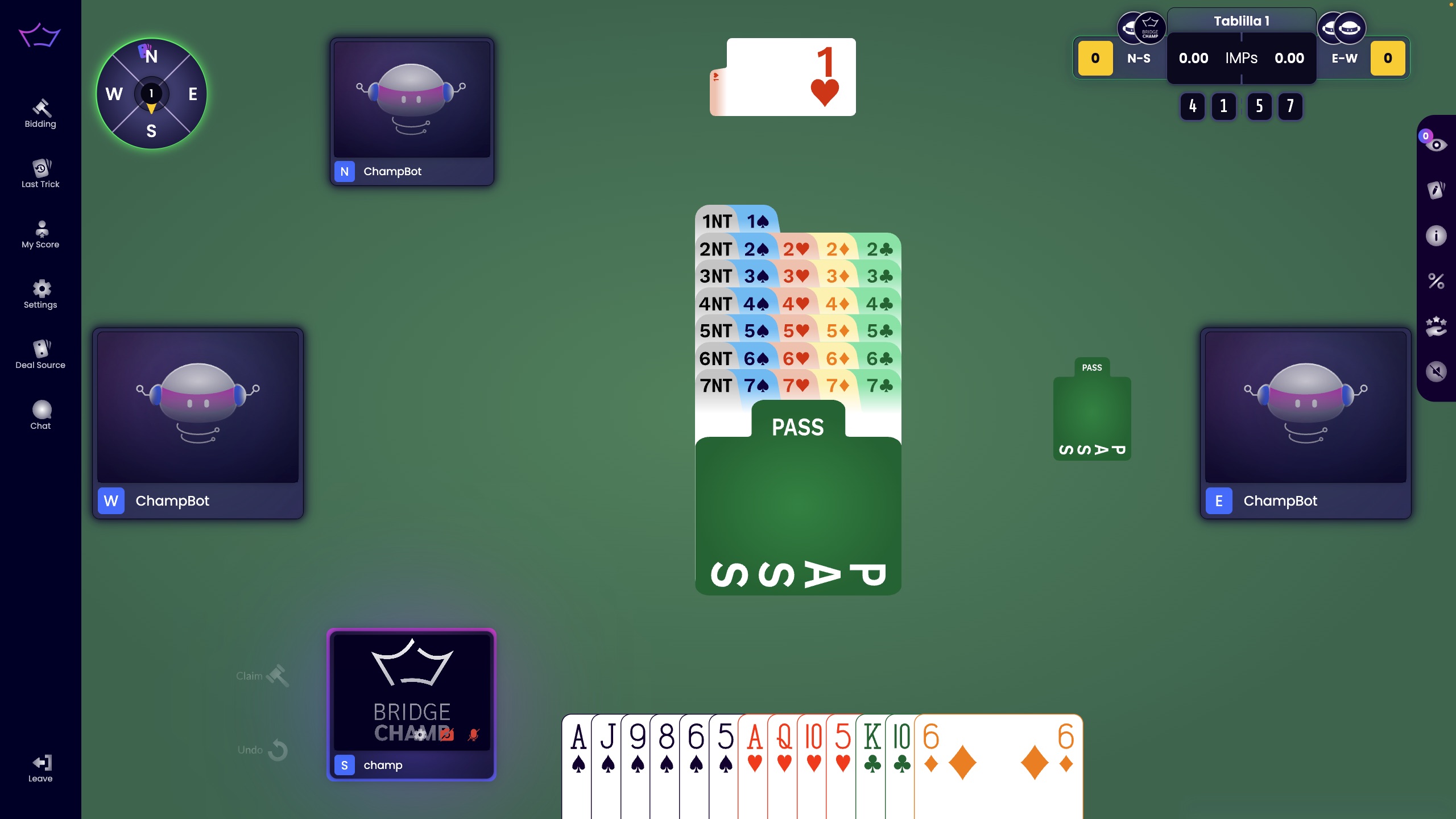
Bridge Champ is designed to be intuitive and user-friendly, but like anything new, it helps to understand the basics before jumping in.
This guide walks you through the key features of the game interface so you can get comfortable quickly.
If you have any questions along the way, feel free to reach out at info@bridgechamp.com.
¶ Mic/Cam Permissions
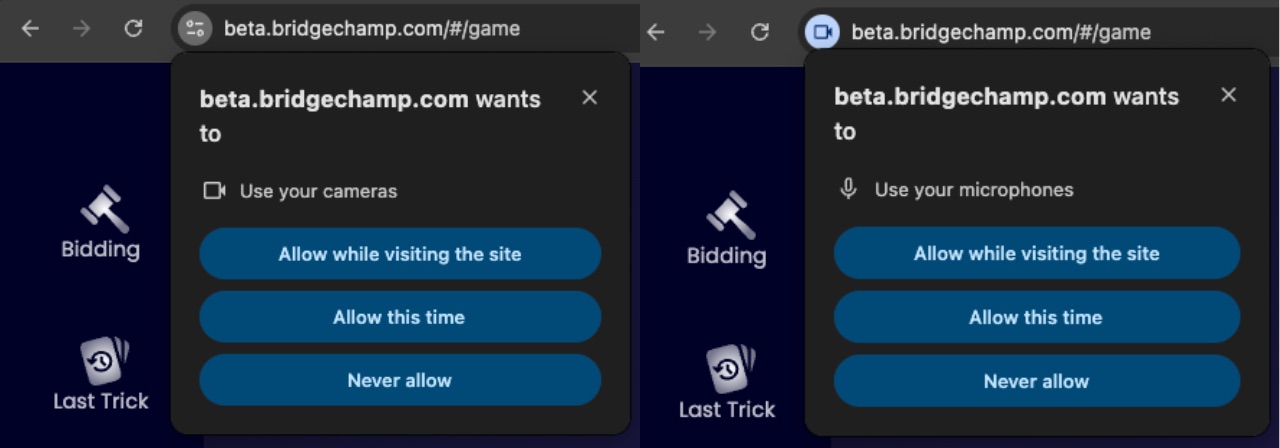
When you join a table, your browser will ask for permission to access your camera and microphone. This step is essential for enabling in-game audio and video communication.
- Allow while visiting the site: Recommended option. Grants access without asking again.
- Allow this time: Temporary access, prompts again next time.
- Never allow: Blocks access. Change in browser settings to re-enable.
- Select devices (optional): Choose among multiple devices.
- Manage during gameplay: Hover over your profile to mute or turn off your camera.
Watch the video below for detailed instructions:
¶ Table Widgets
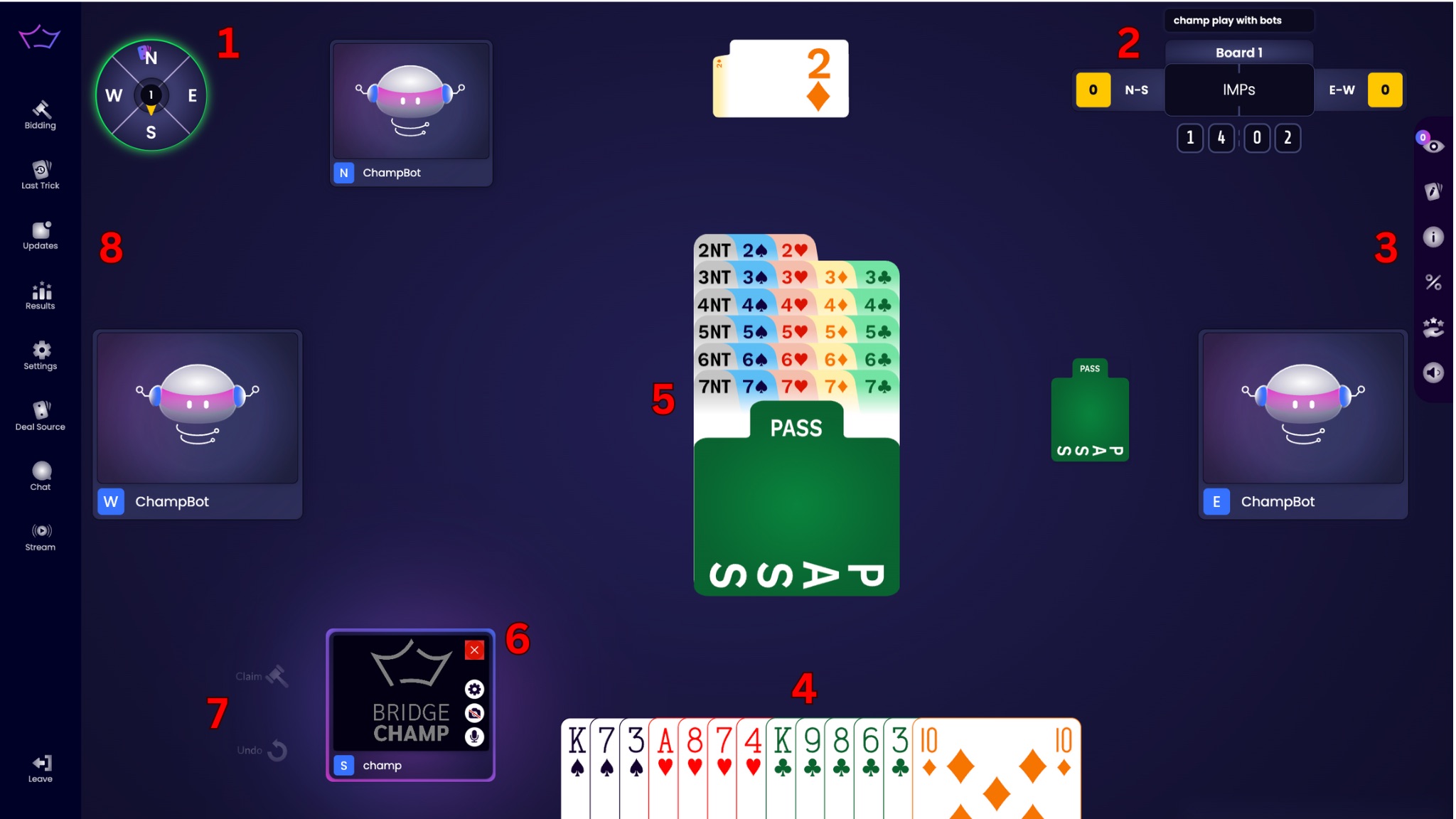
When joining a table, you’ll see several helpful tools to support your gameplay:
- Compass: Indicates turns, vulnerabilities, and the contract winner.
- Scoreboard: Displays tricks, board number, and time.
- Right Game Menu: In-game tools and dialogs.
- Playing Cards: Automatically sorted by suit, playable only on your turn.
- Bidding Cards: Hover to preview meaning, click to bid.
- Player Seat: Shows your profile. Hover for cam/audio and leave options.
- Undo/Claim Buttons: Available by your seat.
- Left Game Menu: Access results, chat, bidding history, etc.
¶ Playing Turn Indicators
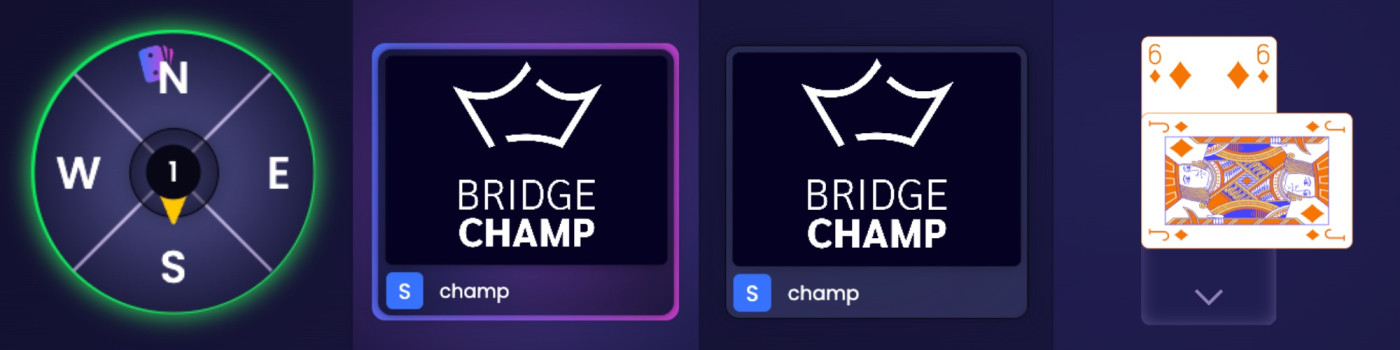
Bridge Champ uses visual cues to show whose turn it is:
- Compass Indicator: Arrow points to the active player.
- Colored Frame: Highlights active seat.
- Center Table Arrow: Shown after bidding ends.
¶ Bidding Stage
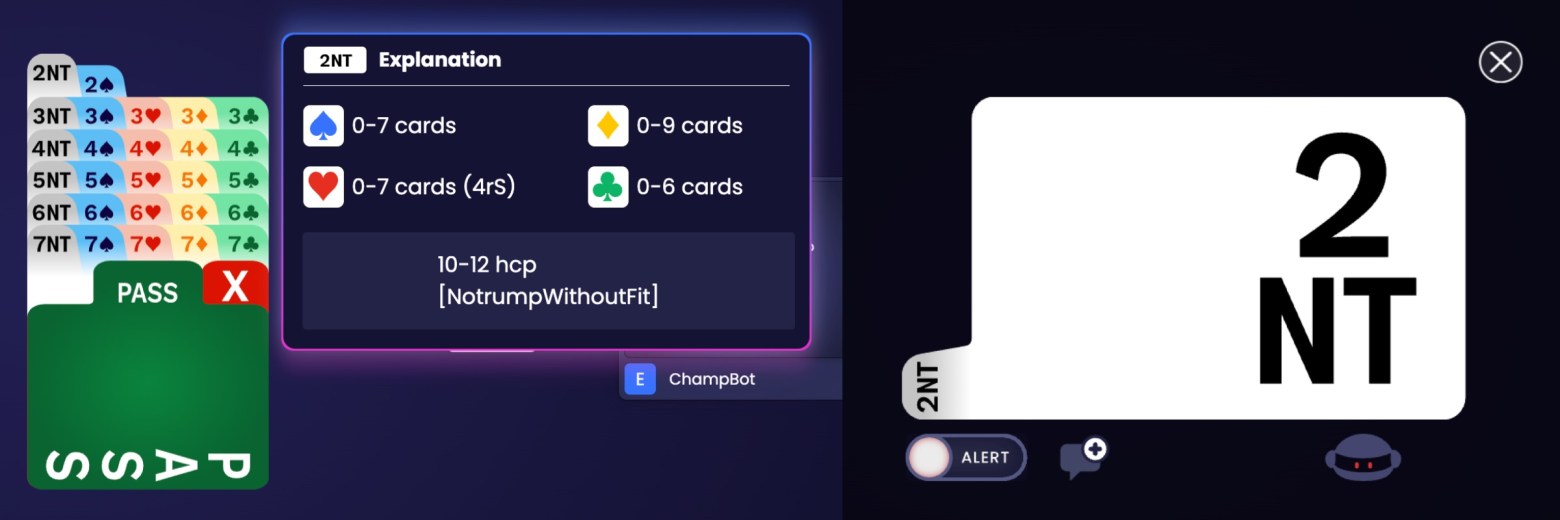
- Hover over the bidding box to view options.
- Click once to preselect; add notes or alerts.
- Click again or double-click to confirm.
¶ Playing Stage
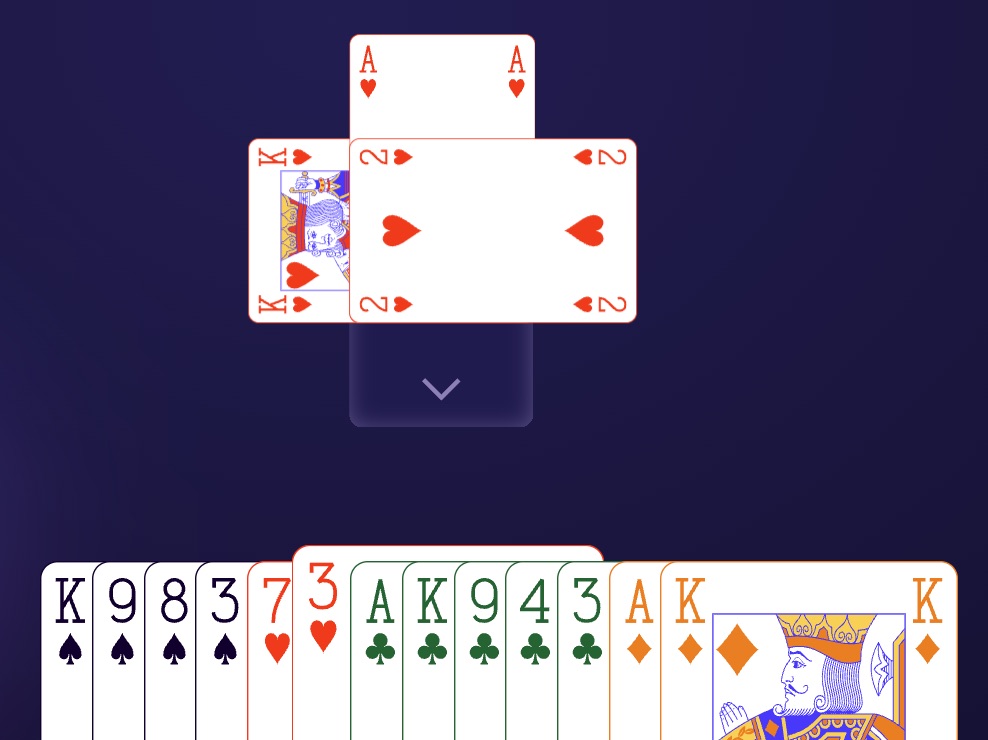
Play begins once your cards are visible. You can only play during your turn.
Default suit order (No Trump):
- ♠ Spades
- ♥ Hearts
- ♦ Diamonds
- ♣ Clubs
With a trump suit (e.g., 2♦):
- ♦ Diamonds (first)
- ♠ Spades
- ♥ Hearts
- ♣ Clubs
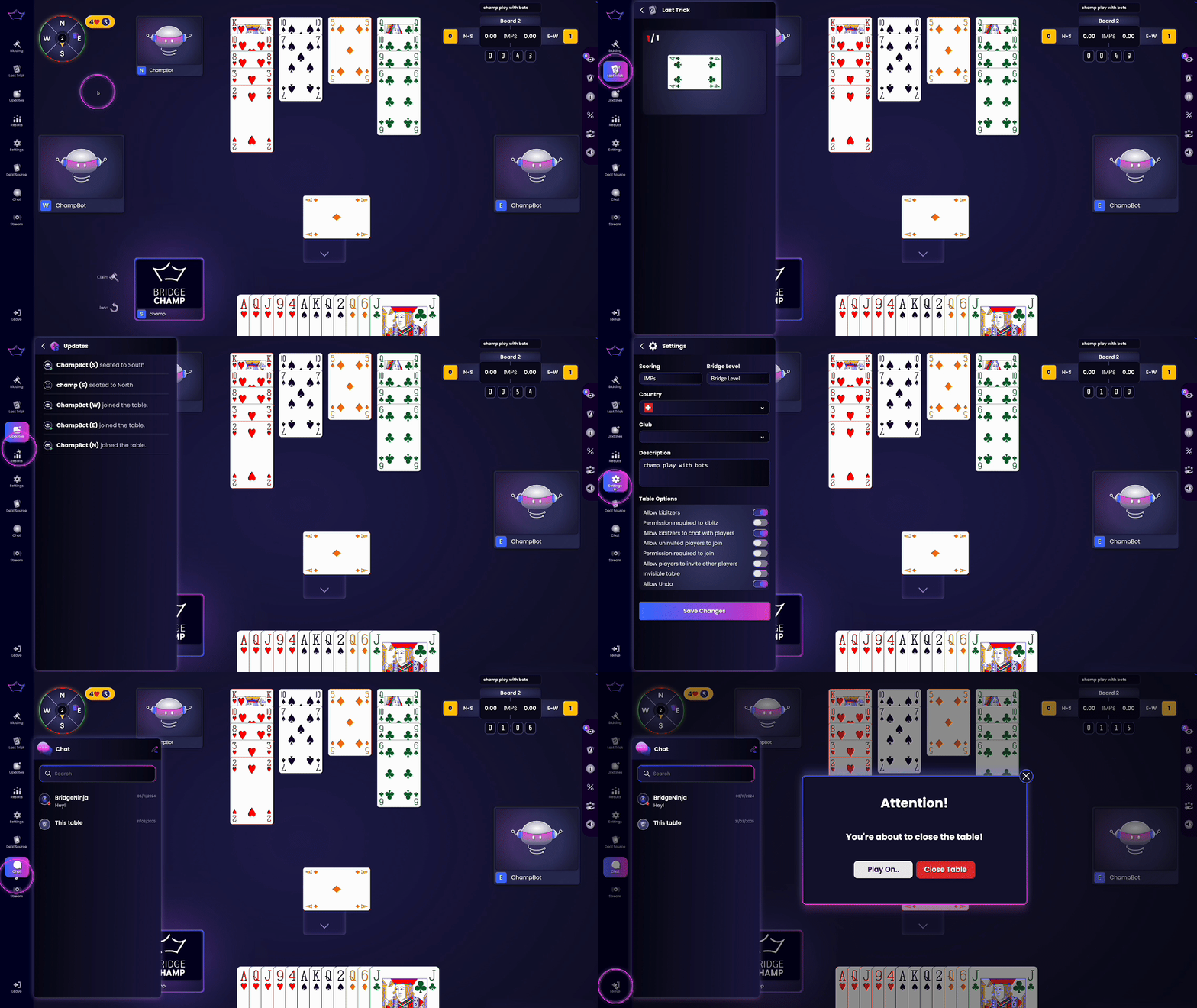
Private chats while you play
You can open and read your private chats while you are in a game, and while the other person is in one. Sending waits until the game is over, so nobody is pulled away in the middle of a hand.
¶ Related guides
- Play From Position: save an interesting position from a hand you played and replay it from there.
- Share Hands: send a board to another player to review together.
- Game Results: where to find your scores and the analysis tools.

¶ Game Settings
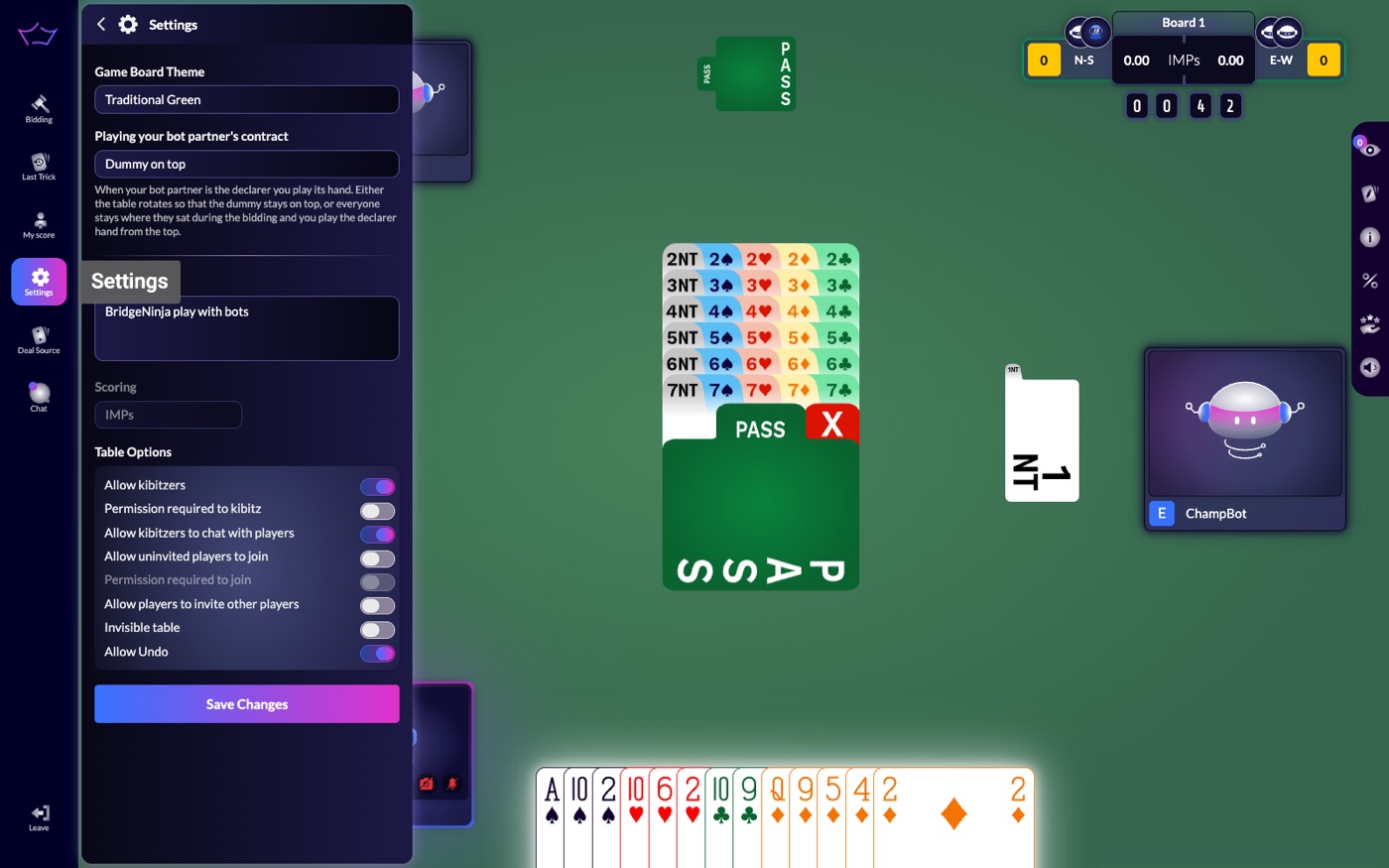
The Settings button on the left menu opens a panel with:
- Game Board Theme: the colour of the table.
- Playing your bot partner's contract: when your bot partner is the declarer you play its hand. Choose Dummy on top (the table rotates so the dummy stays on top) or stay where you sat during the bidding and play the declarer hand from the top.
- Table Options (your own tables only): kibitzers, who may join, invitations, invisible table, undo.
- Card size: 100%, 115%, 130% or 150%. The change shows at once, no need to click Save Changes. It applies to the browser you are using, so set it again on another computer, and the cards grow as far as the table has room for them: the trick pile moves up a little and your seat card moves aside to make space.
The theme, the rotation choice and your default casual scoring are saved to your account and follow you to every device, including the mobile app. You can also change them under your profile picture, Account, Settings.
Two more play options live under Account, Settings, Preferences:
- Play singletons automatically against bots (on by default): when you play with three bots, a card you are forced to play, your only card in the suit led or your last card, is played for you.
- Click twice to play a card (off by default): the first click selects a card, a second click on it plays it. Turn it on if you sometimes play the wrong card by accident.
The same block has a Date format and a Time format setting, so results and tournament times are shown the way you are used to.
¶ Sounds
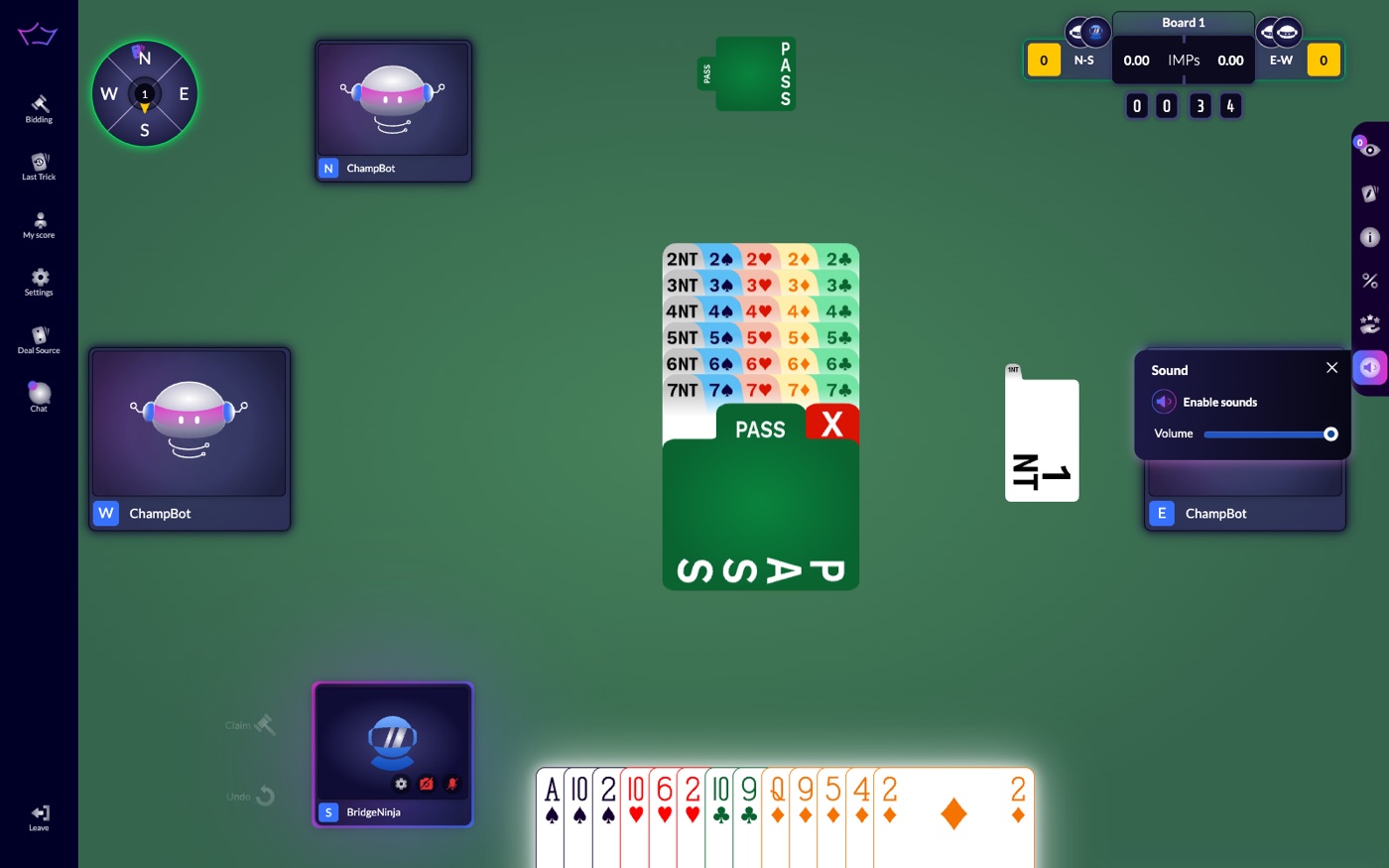
Every call and card uses one consistent sound. The speaker icon on the right of the table opens a small panel with Enable sounds and a Volume slider. For finer control go to Account, Settings, Game Sounds, where you can switch Interface clicks, Table events: cards, bids and results and Alerts: chat and notifications on or off separately.
¶ Undo
The Undo button sits next to your seat. At tables with screens, you can take back a bid before it crosses the screen, and the regular undo works with screens on. Undo is only available where the table or tournament allows it.
Claim sits next to Undo. The claim dialog opens with all the remaining tricks already selected, so claiming the rest of the hand is a single click; lower the number if you are claiming fewer.
¶ Leaving a Table
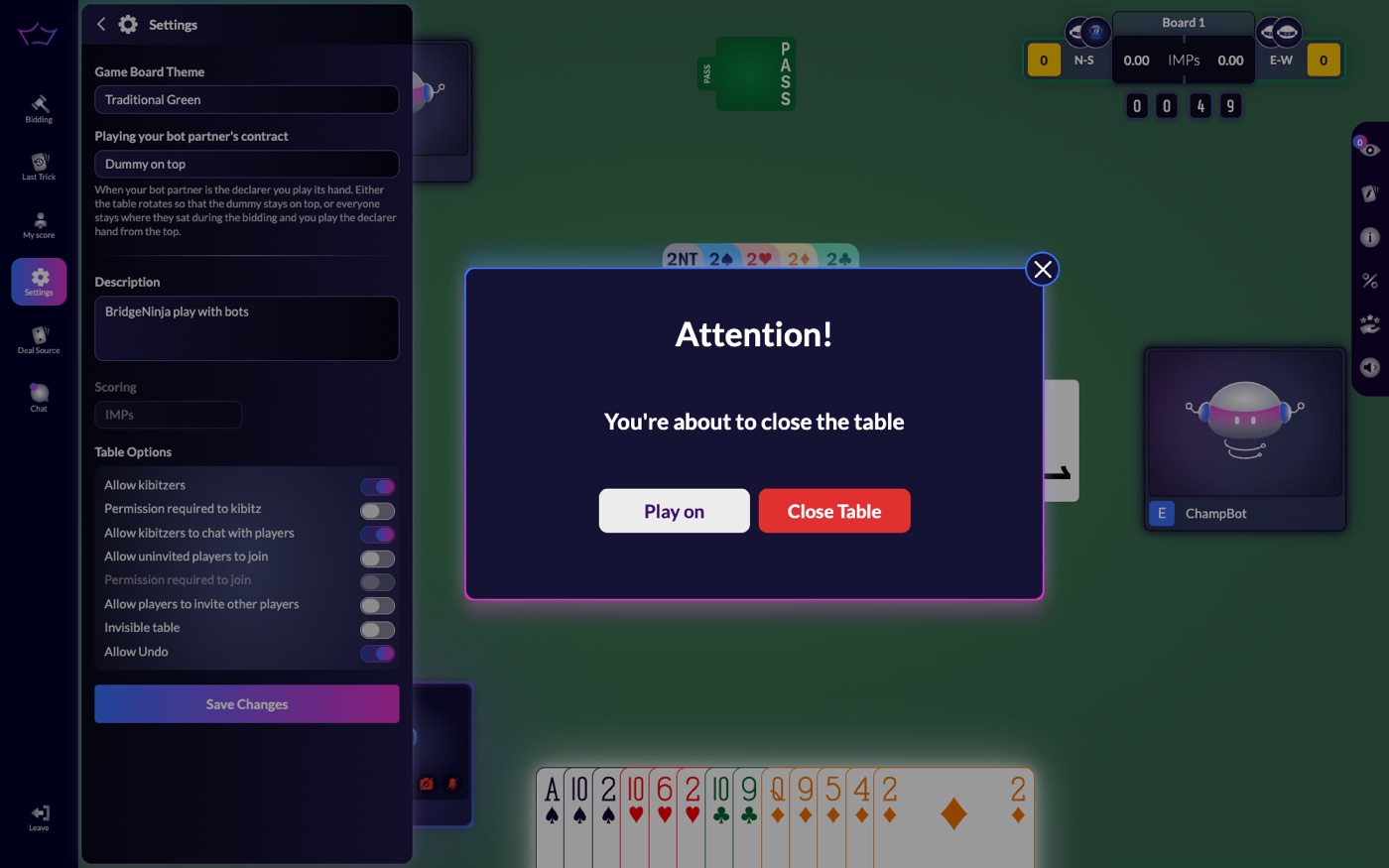
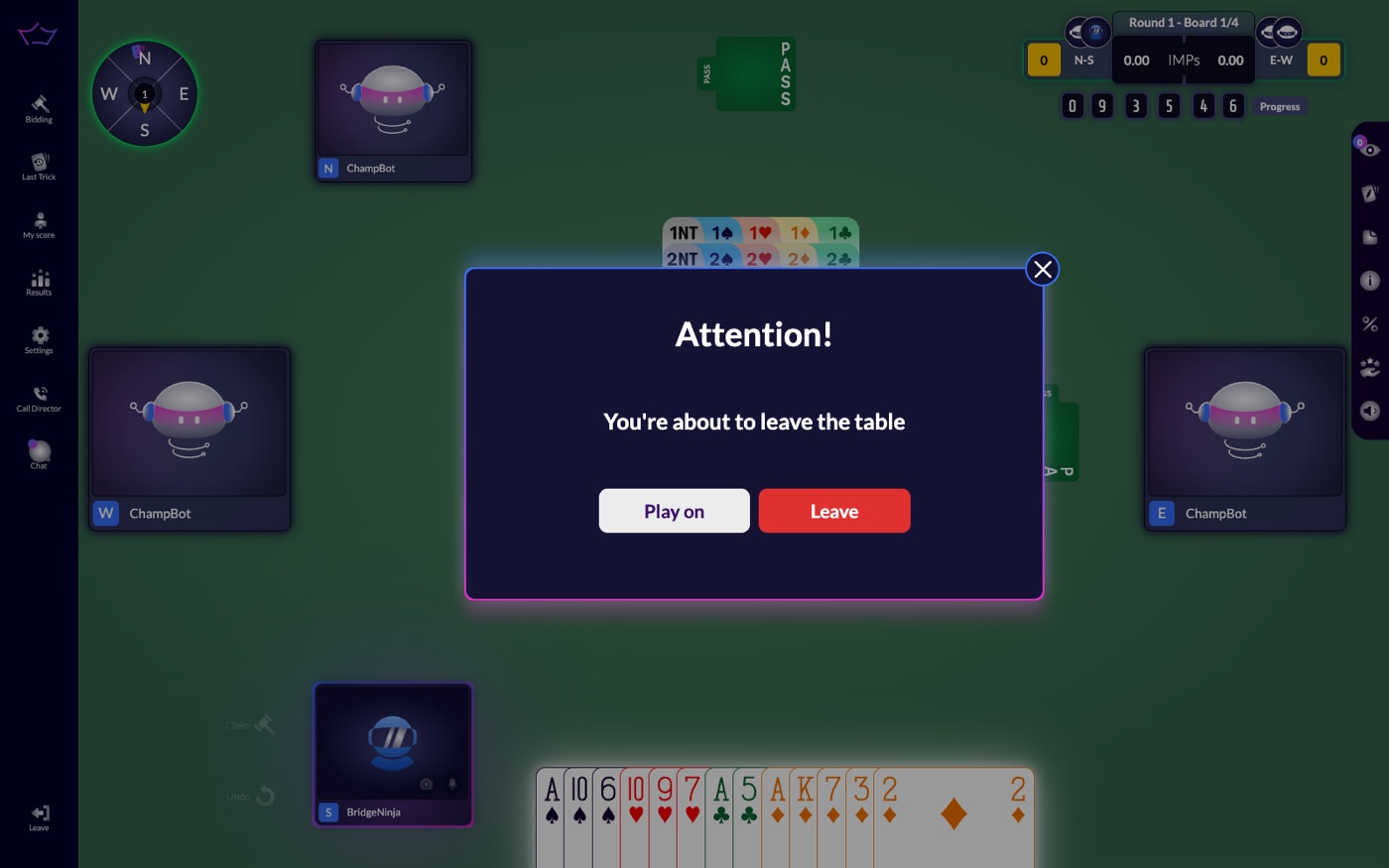
Click Leave at the bottom left. You can leave any table, including a tournament table. At a bots table of your own, Bridge Champ asks whether to Play on or Close Table. If other people are playing with you, leaving in the middle of a board strands them: Bridge Champ asks for a reason, and the number of times you left in the middle is shown on your profile together with the excuse you gave. In a flexible-time tournament the dialog says "You're about to leave the table" with Play on and Leave: leaving simply pauses you, and you continue later from the same board.
¶ Watching a Game
Click the eye icon on a table to kibitz it. When you watch a single player, the cards they and the dummy have already played are shown dimmed, and the hands are ordered with trumps first, the same as in the mobile app. Kibitzers of a team match can switch between the two rooms unless the organiser turned that off.