¶ Make the Cards Bigger
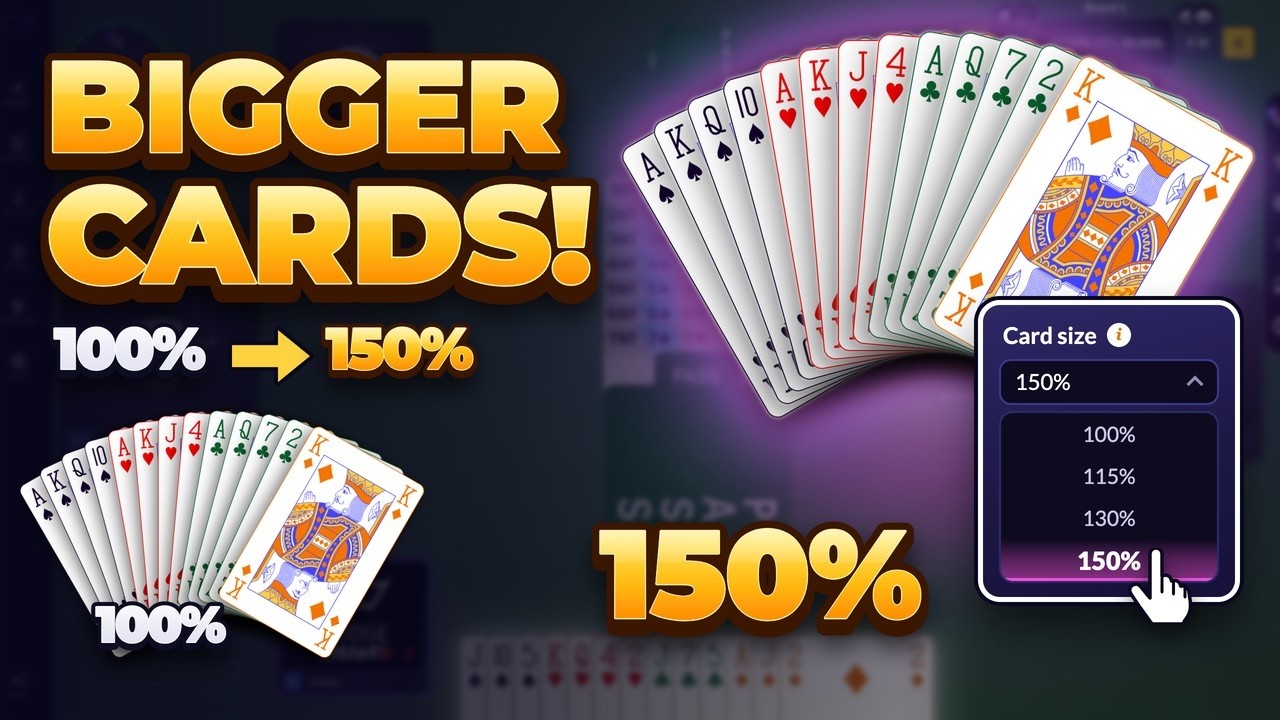
Cards too small on your screen? Make them bigger in two clicks. The Card size setting lets you choose 100%, 115%, 130% or 150%, and the cards change straight away.
📋 At a glance
What it is: A setting that makes the cards in your hand bigger.
Who it is for: Anyone who finds the cards hard to read, on a laptop or a big screen.
You will need: Nothing: open any table, on your own or with others.
¶ Overview
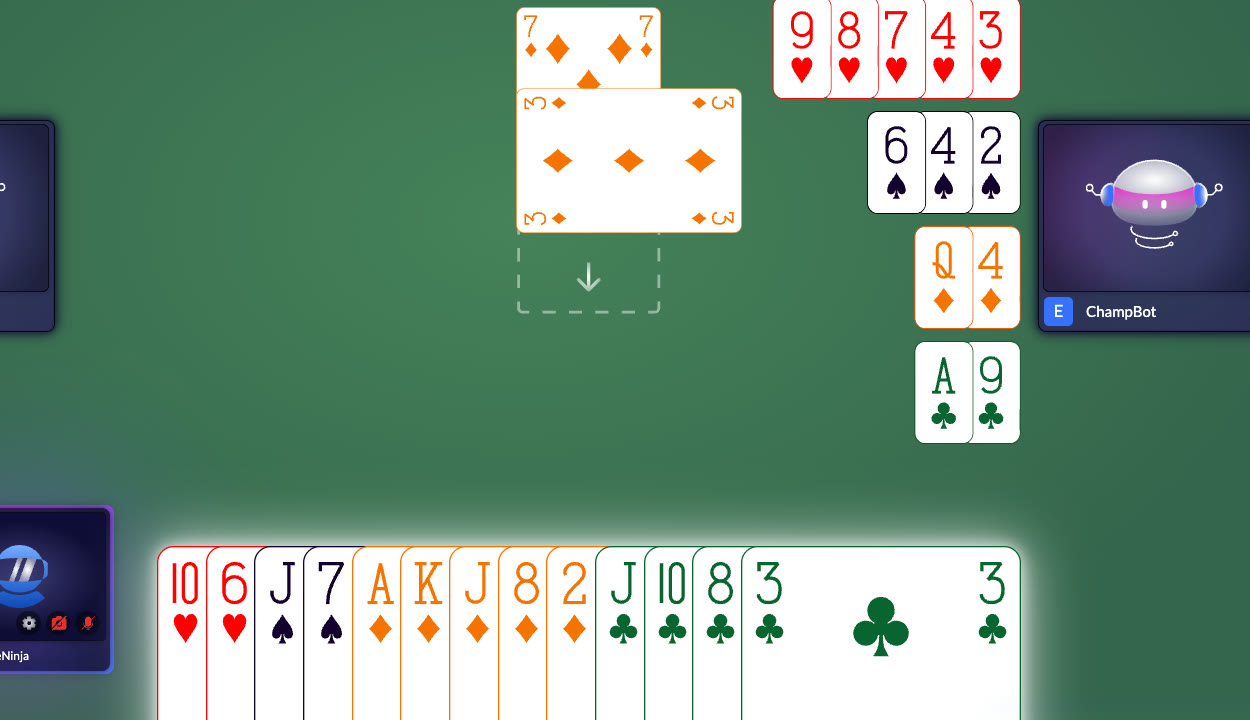
Since October 2026 the cards on the table use more of the screen and sit in the middle, right under the dummy. If you want them bigger still, the Card size setting does it. You can change it whenever you like, even in the middle of a hand.
¶ How to make the cards bigger (website)
¶ Step 1: Open Settings at the table
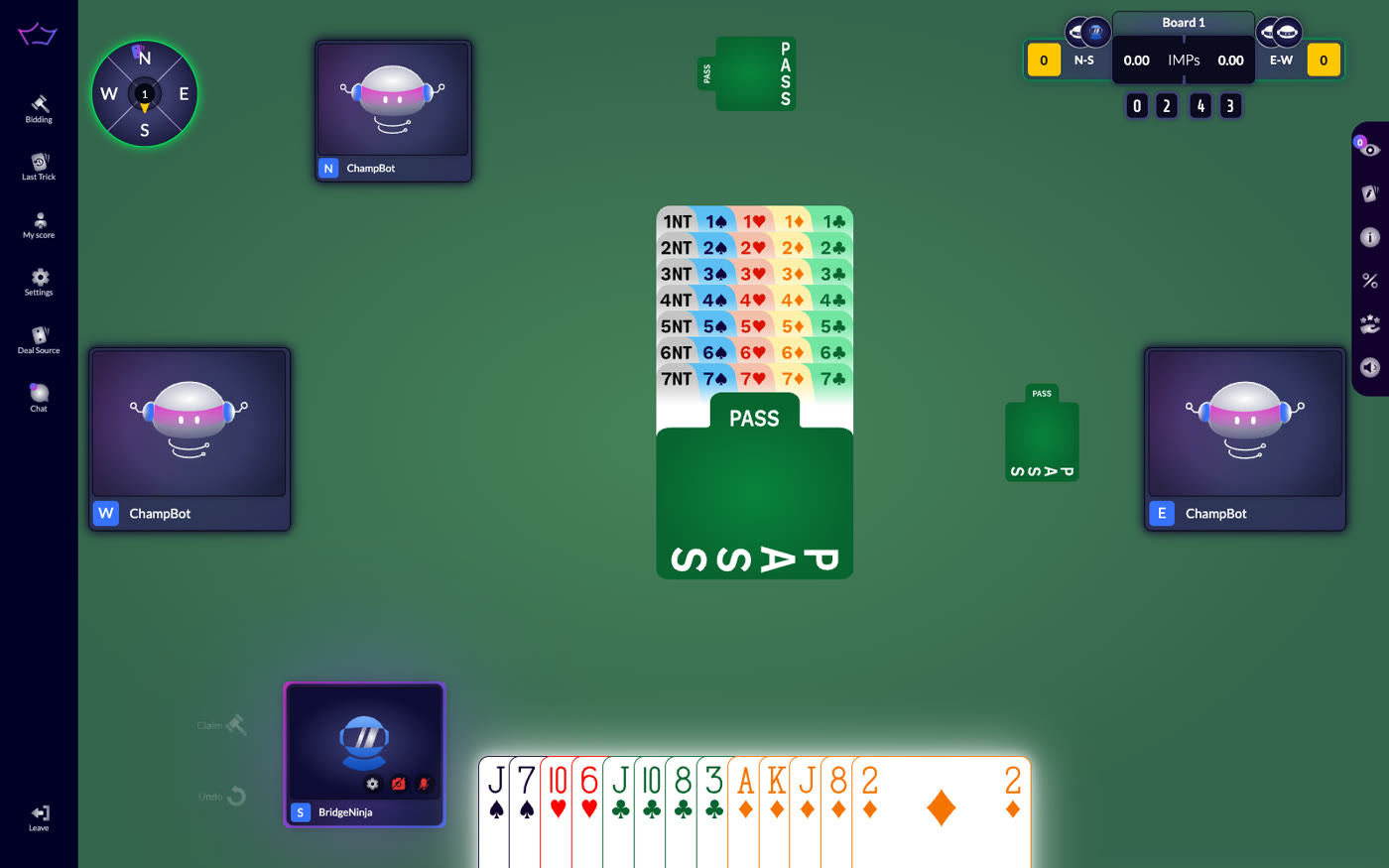
Start or join any game. At the table, click Settings, the gear icon in the menu on the left.
¶ Step 2: Choose a card size
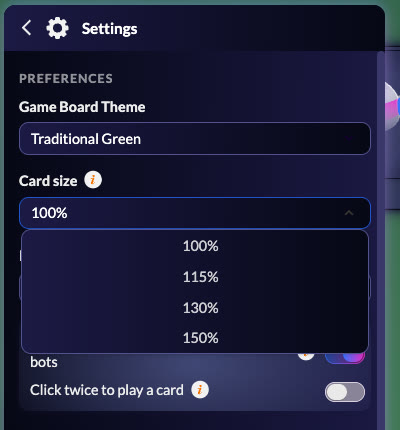
At the top of the panel, under Preferences, open Card size and choose 100%, 115%, 130% or 150%.
¶ Step 3: Play on
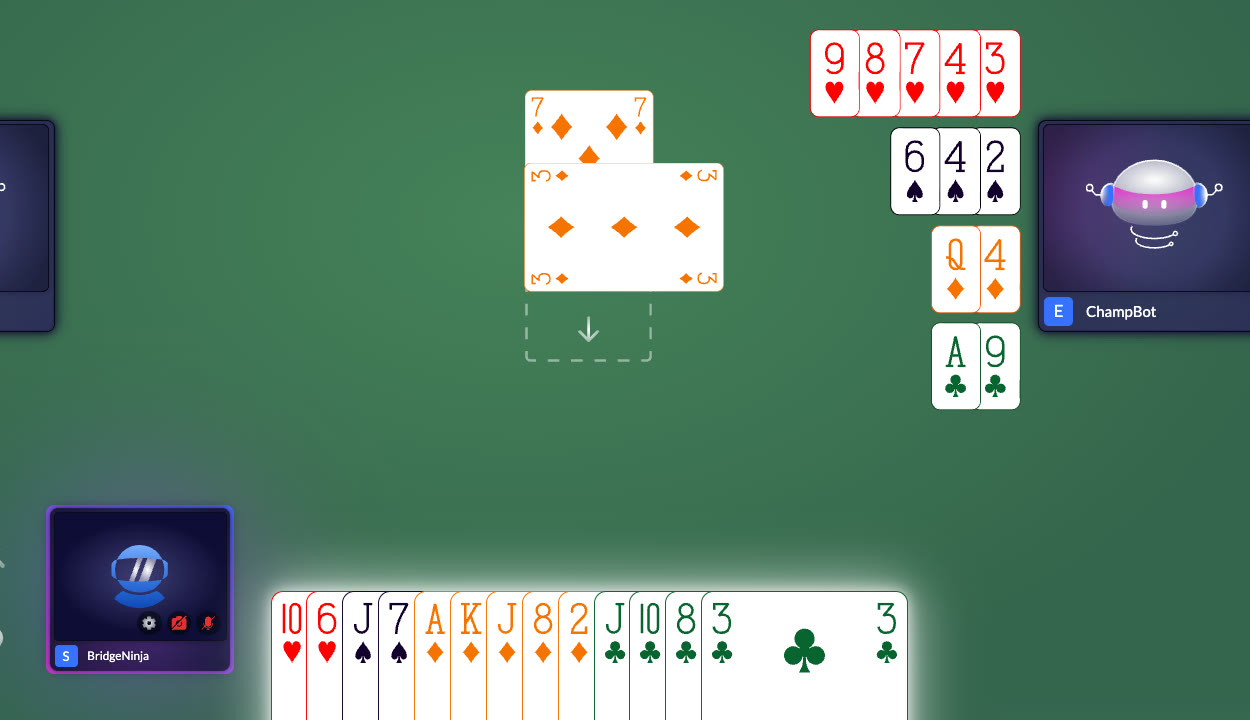
The cards change at once. There is no need to click Save Changes: that button is only for the table options lower down. Close the panel and play.
¶ Good to know
- It is saved in your browser. The next time you open a table on this computer, your cards are already the size you picked. On another computer or browser, choose it there too.
- The cards grow as far as the table has room for them. To make space, the trick in the middle moves up a little and your own name card moves to the side.
- At 150% the dummy and the cards in the middle of the table get bigger too.
- Many laptops get bigger cards on their own. Their screens are a little taller than a TV screen, so the cards are already a little bigger at 100%.
- When you watch a game as a kibitzer, the cards stay at their normal size.
¶ In the mobile app
In the app, open Table Options during a game. You will find the size of the cards there, together with how the table sits on your phone (upright or sideways) and how the side hands are shown. The video How to Customize Your Bridge Champ Mobile Table shows every option.
¶ Related guides
- In Game: everything at the table, including Settings
- Mobile App: Table Options and playing upright
- System Requirements: screens and browsers
- For Players: all player guides

Questions? Write to info@bridgechamp.com.