¶ Bidding Quizzes
A bidding quiz is a set of bidding problems you write for your club. You set the hand, the auction so far and the question, then you decide how many points each answer is worth. Your members play it in their own time and see how they scored.
📋 At a glance
What it is: Bidding problems you build inside your club, scored per answer.
Who it is for: Club owners, club administrators and teachers who want their students to practise bidding between lessons.
You will need: A club, and at least one hand you want to ask about.
¶ Overview
Every club has a Quizzes tab. Owners and administrators see a New quiz button there and can build as many quizzes as they like. Members see the quizzes that are open to them, and play them from the same tab.
A quiz is not marked right or wrong. You give each acceptable call its own score, so a quiz can reward the best bid with ten points and a reasonable second choice with four. Any call you do not list scores nothing.
¶ How to create a quiz
¶ Step 1: Open the Quizzes tab
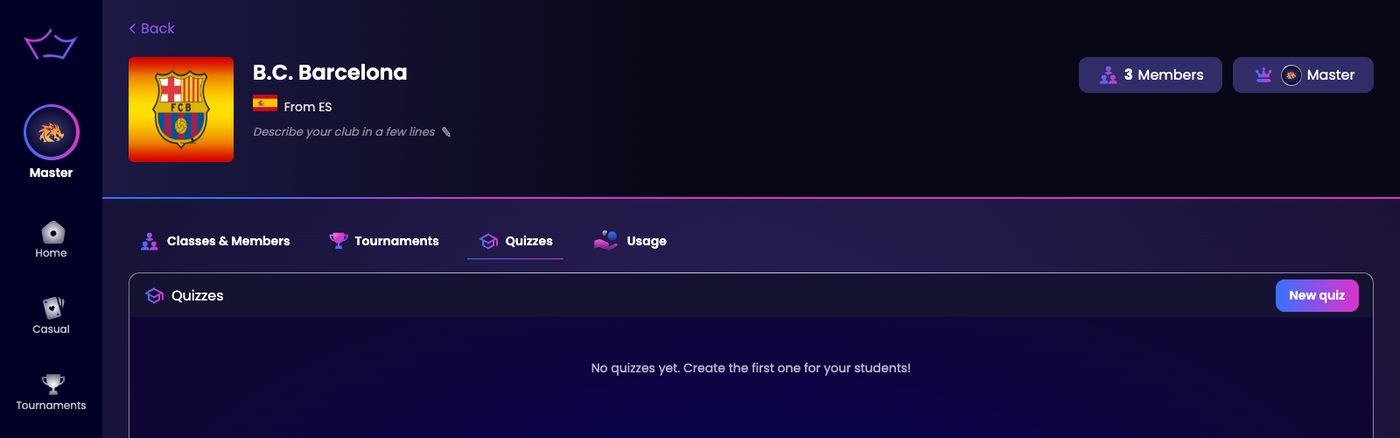
Click your profile picture, choose Clubs, and open your club. Then click the Quizzes tab. If there are no quizzes yet you will see No quizzes yet. Create the first one for your students!
Click New quiz.
¶ Step 2: Name the quiz and choose its settings
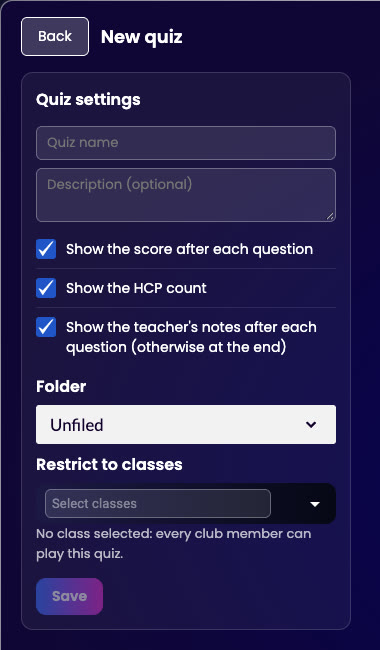
Give the quiz a Quiz name. The Description is optional, but it helps your members know what the quiz is about.
Three settings are already ticked for you:
- Show the score after each question: your members see how they did straight away, question by question. Untick it if you would rather they only see the total at the end.
- Show the HCP count: the hand is shown with its high card point count. Untick it if counting the points is part of the exercise.
- Show the teacher's notes after each question (otherwise at the end): you can write a note on every question, and your members read it together with their score, either straight after the question or once they have finished the quiz.
Restrict to classes decides who can play. Leave it empty and every member of the club can play the quiz. Pick one or more classes and only the students in those classes will see it.
Click Save. The quiz now exists, with no questions in it yet.
¶ Step 3: Add a question and build the hand
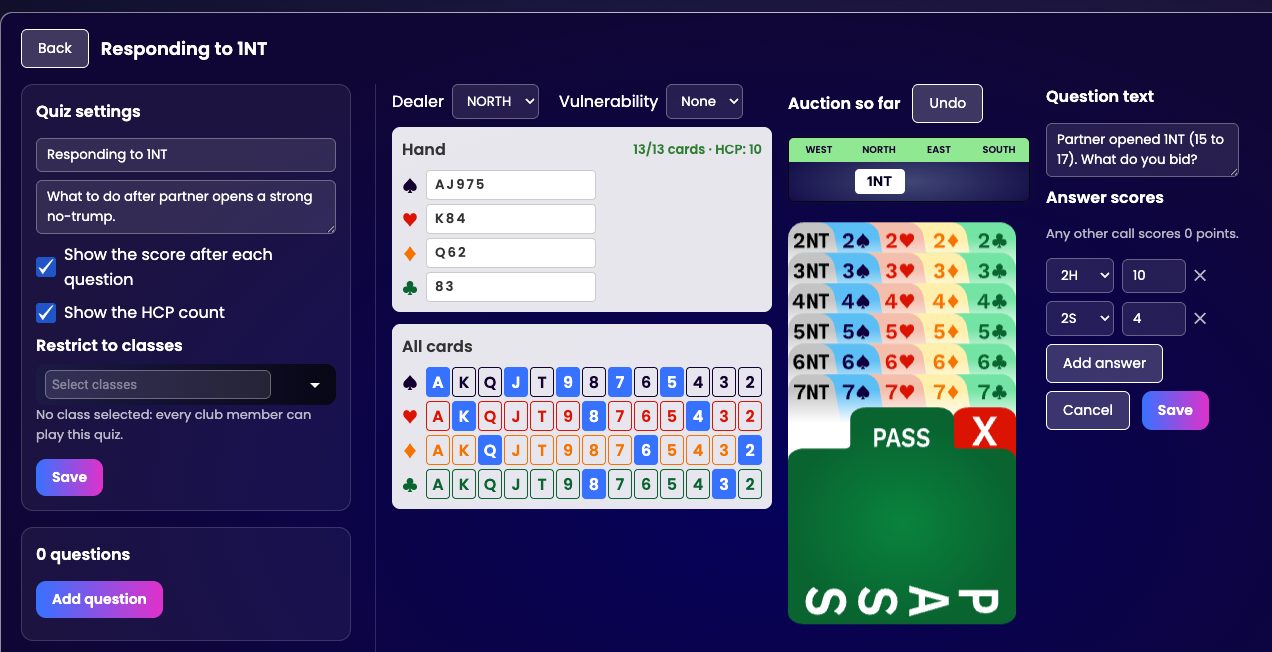
Click Add question. Start with Dealer and Vulnerability, because both can change the right answer.
From the second question on there is a shortcut: Copy hand from question 1 (or whichever question came before) brings over that hand, so you only change the cards that differ. Clear hand empties the panel in one click.
Now build the hand your member will be looking at. Click the cards you want in the All cards grid, one suit row at a time. The cards you pick appear in the Hand panel above, and the counter keeps track for you: 13/13 cards, with the high card points next to it.
You must choose exactly thirteen cards. Until you do, the page reminds you with Select exactly 13 cards for the hand and it will not let you save.
¶ Step 4: Enter the auction so far
Use the bidding box under Auction so far to enter the calls that came before your question. Click them in order, exactly as they happened at the table. There is an Undo button if you click the wrong one. Copy auction from question 1 (or the question before) reuses the previous auction, and Clear auction starts it again from scratch.
Leave the auction empty if you want to ask about an opening bid. Once you have entered a call, the bidding box only offers the calls that are still legal.
¶ Step 5: Ask the question and score the answers
Question text is optional. If you leave it blank your members simply see the hand and the auction. Filling it in lets you be specific, for example Partner opened 1NT (15 to 17). What do you bid?
Under Answer scores, pick a call and give it a number of points. Ten is offered to start with. Click Add answer to score a second call, a third, and so on. This is how you reward a good alternative without calling it the best bid.
Everything you do not list is covered by the line above the box: Any other call scores 0 points.
The editor also has an optional Explain your bid field. Use it. It is where you tell your student why the answer is what it is.
¶ Step 6: Save, then add the next question
Click Save. The question count on the left goes up by one. Click Add question again for the next problem, and repeat until the quiz is the length you want.
To change the order of the questions, use Move up and Move down. While you edit, the ↑ and ↓ keys on your keyboard take you from one question to the next.
¶ Step 7: Open the quiz when it is ready
A new quiz is labelled Draft. Your members cannot see a draft, so you can take as long as you like over it.
When it is finished, click Open on the quiz row. The label changes to Open and your members can play it. The same button now reads Close, which takes the quiz back off the list when you want to stop it.

¶ What your members see
In their Quizzes tab, an open quiz shows how far they have got, for example 0/1 answered, with a Play button.
Playing looks like a table. Your member sees the hand, the auction so far above it, their own seat marked You, and the bidding box on the right. The high card points are shown next to the seat if you left that setting ticked.
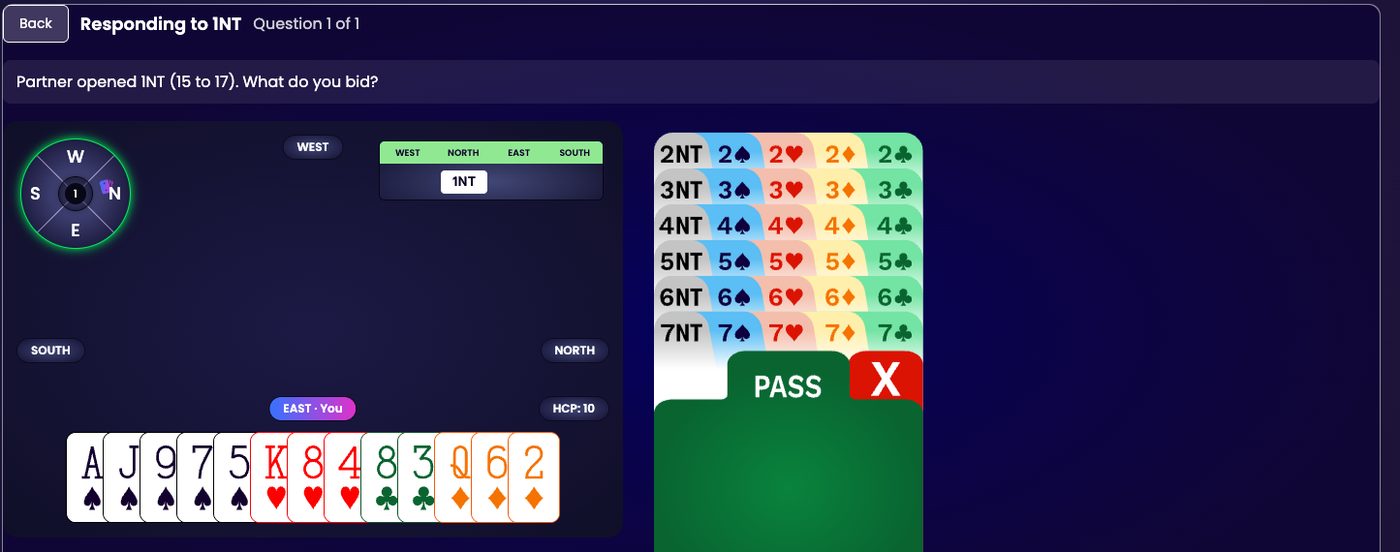
They pick a call, check it on the Your answer line, and click Confirm. Nothing is counted until they confirm, so a misclick costs them nothing.
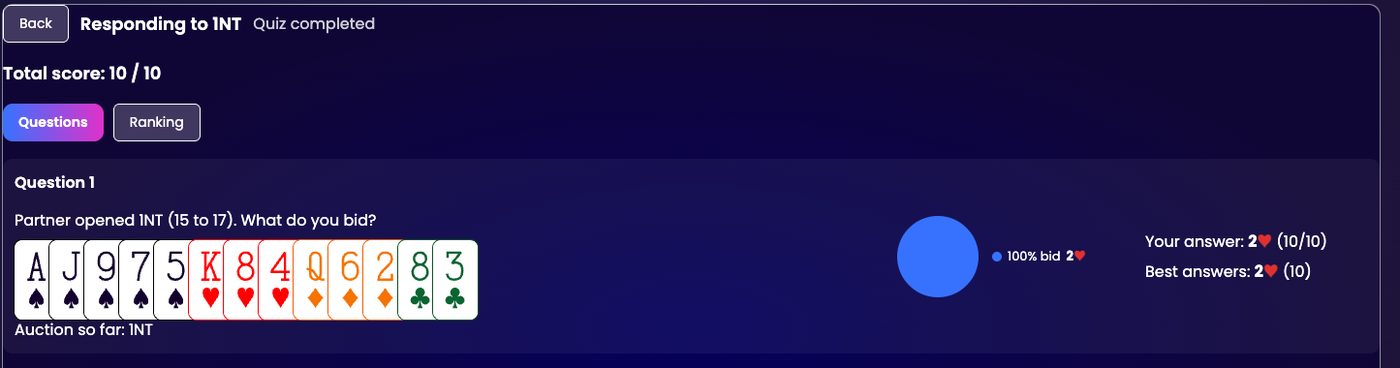
At the end they get Quiz completed and their Total score. The Questions tab reviews every problem: the hand, the auction, what share of the club chose each call, their own answer with the points it earned, and the Best answers you set. The Ranking tab shows how they did against everyone else who has played.
¶ Keep your quizzes in folders
Once you have more than a handful of quizzes, sort them into folders: one per lesson, per level or per term. Click New folder at the top of the Quizzes tab, type a name and click Save. The folder appears as a heading with its own New quiz, Rename and Delete buttons, and the arrow at its left opens or collapses it. Quizzes that are not in any folder sit under Unfiled.
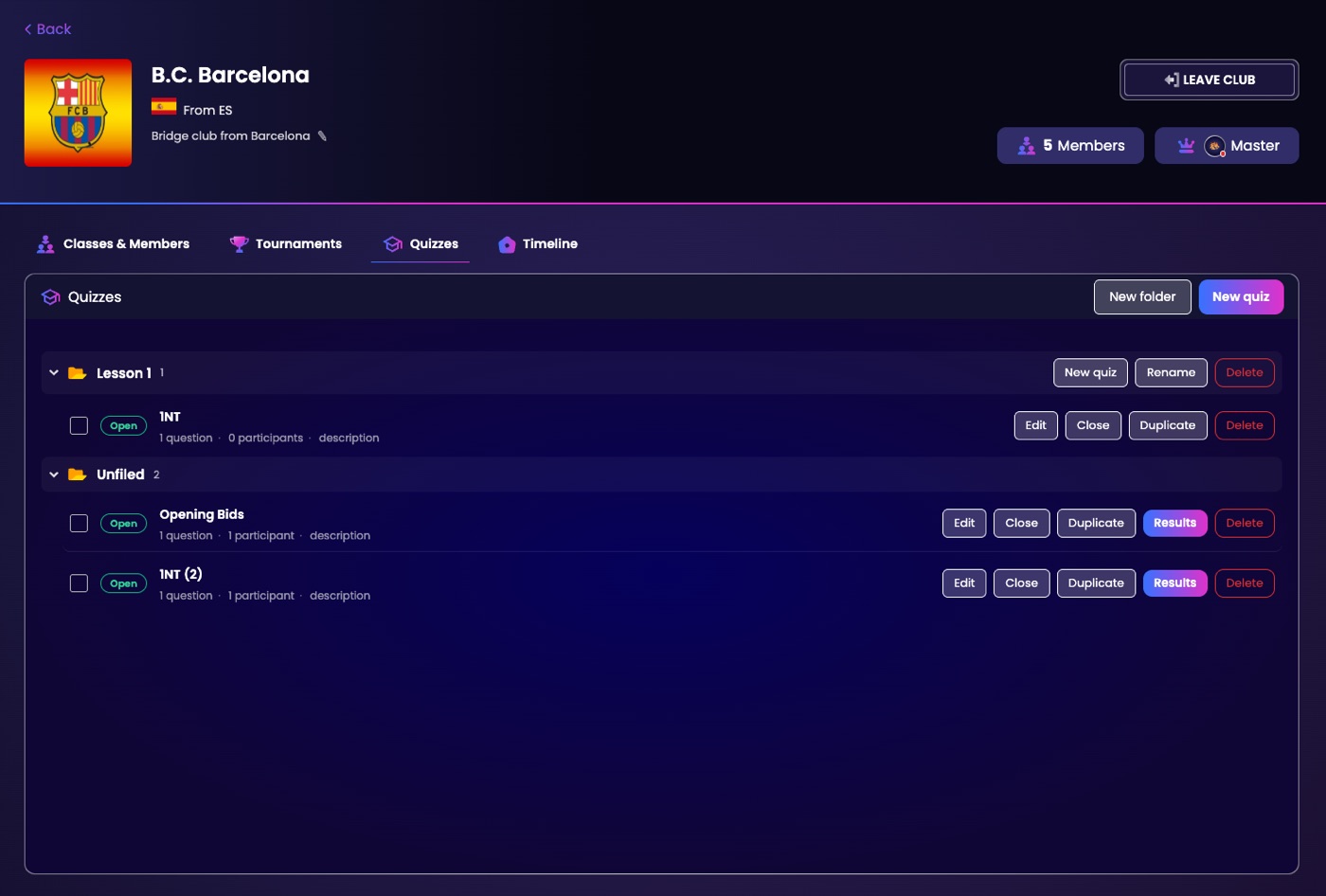
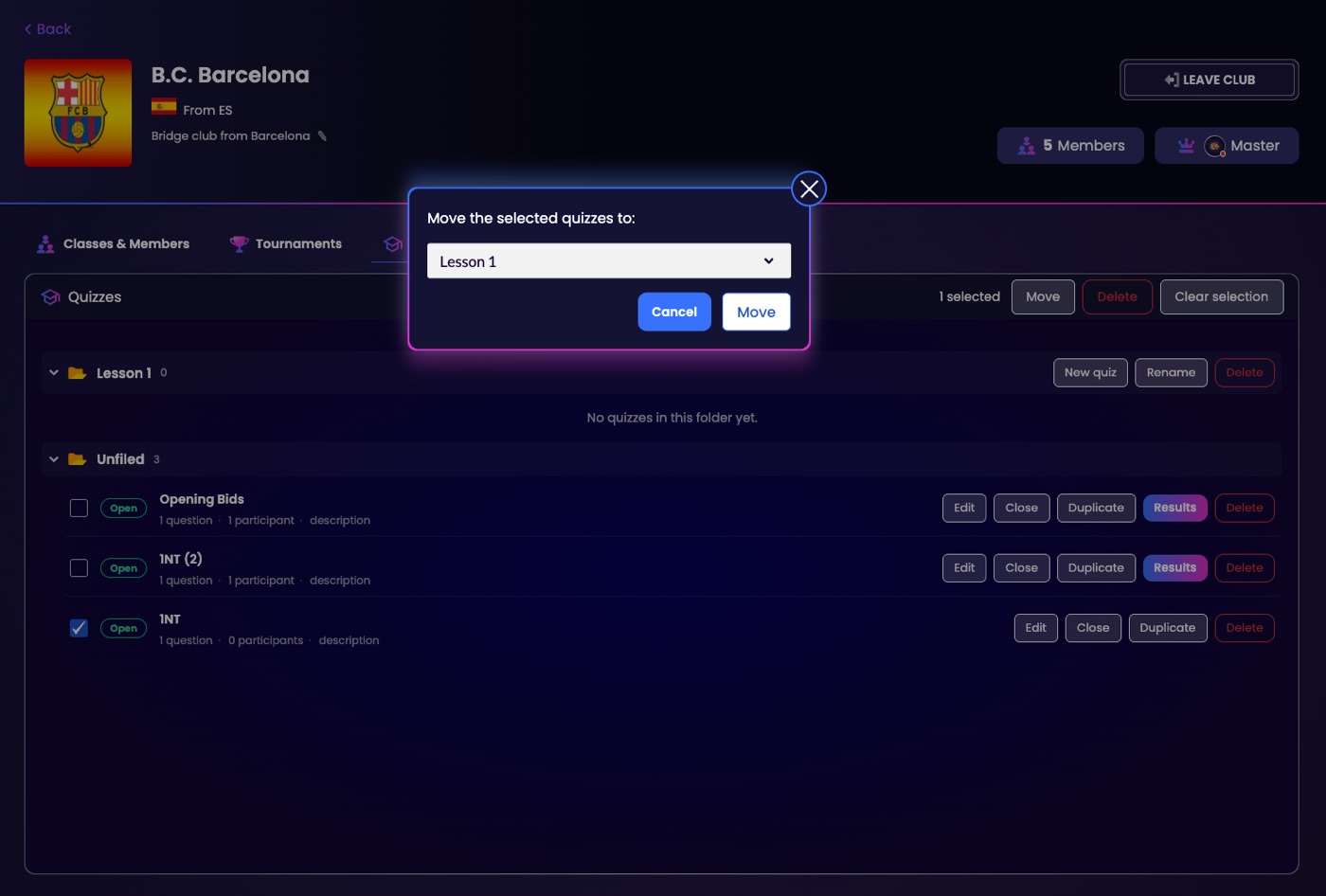
To move quizzes, tick the box at the start of each row. A bar appears at the top with 1 selected (or more), Move, Delete and Clear selection. Click Move, pick the folder in the small window and click Move again. The same bar deletes several quizzes at once, after a warning that the members' answers go with them.
Deleting a folder does not delete its quizzes: they go back to Unfiled.
¶ Looking after your quizzes
Back on the Quizzes tab, each quiz has its own row: the name, how many questions it holds, how many members have played it, and the description you wrote. The buttons at the end are:
- Edit: reopen the quiz to change its settings or its questions.
- Open or Close: publish the quiz to your members, or take it back off the list.
- Duplicate: make a copy. This is the quick way to build a second quiz on the same theme, or to reuse one next term.
- Delete: remove it for good. Bridge Champ asks you to confirm first, and warns you that your members' answers will be deleted with it.
¶ Reading the results
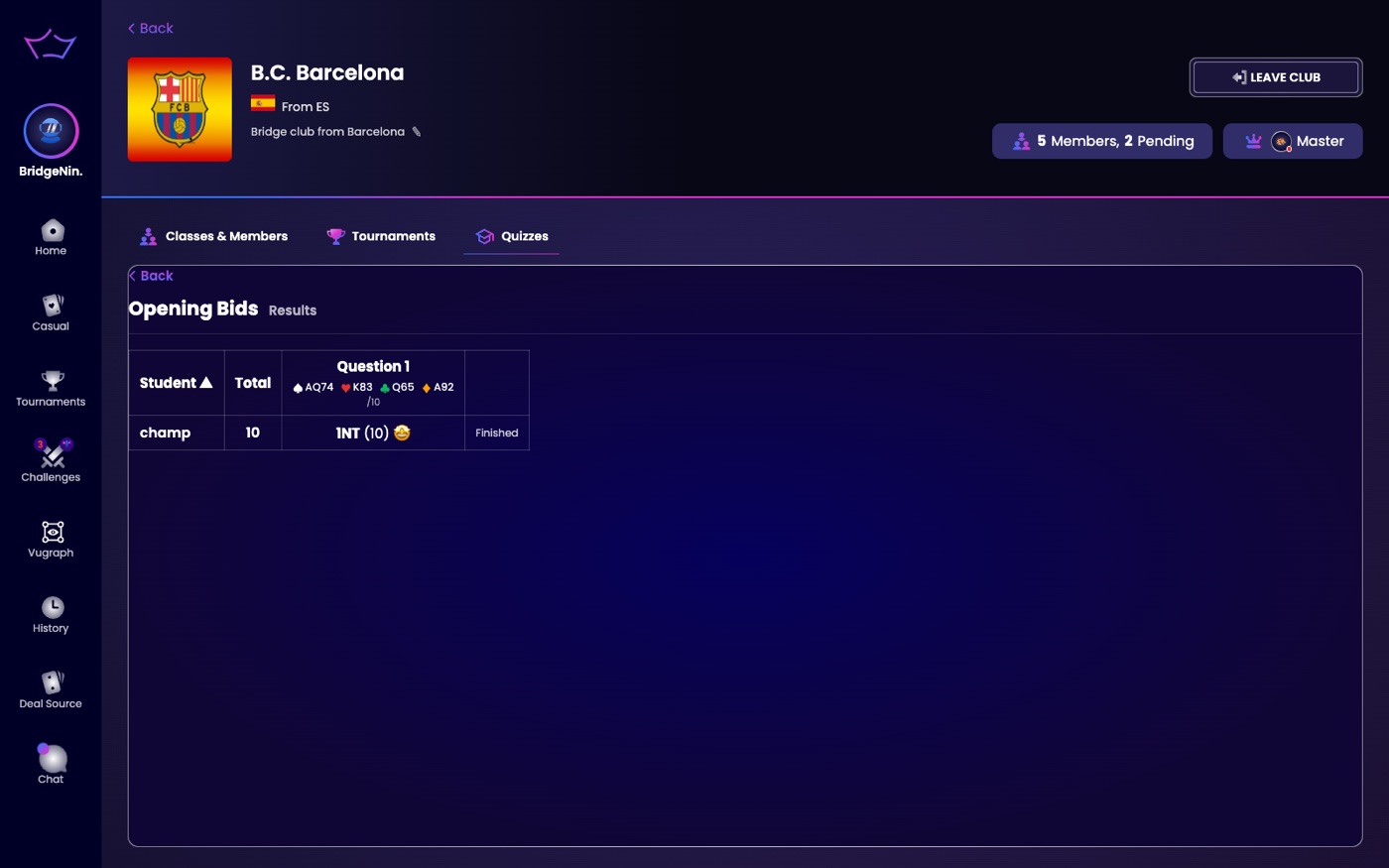
When you open a quiz, every member who can play it gets a notification, New quiz in your club, and a push notification on their phone if they use the app. Members open the quiz from the Quizzes tab of the club, from their club timeline, or in the mobile app. Once you close a quiz it leaves their main list and goes to their Closed tab, where they can still look back at it. They answer from a table-style view with the bidding box. The Results view lists every student with their total, and for each question the hand (with suit symbols), the call they made, the points it earned, an emoji for the answer and your note. The club page also shows how many tournaments and quizzes are waiting for each member.
Once members have answered, the settings and the questions are frozen. Only the answer scores and the teacher's note can still be changed, and changing the scores asks how to grade the recorded answers. Each quiz card has Edit, Close (or Open), Duplicate, Results and Delete.
¶ Related guides
- Classes: the groups you can restrict a quiz to
- Members and Roles: who can build a quiz
- Bidding Practice Tables: practise bidding at a live table
- Club Tournaments: run an event for the same members
- For Clubs: all club guides

Questions about your club? Write to us at info@bridgechamp.com.